The resume studio
Write a resume beside the page as it will print, compare it with a job description to see what it lacks, and export it once it is ready.
The Resume studio keeps your resumes in your account. Every meeting, of any type, can use one of them as your background in its answers and preparation. A new meeting starts with the resume you updated last, and its page lets you choose another or Don’t use a resume.
Drag a resume’s page to another place to arrange the library; with the keyboard, press Space on it, move it with the arrow keys and press Space again. A new resume comes first, and the order stays in your account, on every device.
Import or start empty
Import resume takes most document and image files, such as PDF, Word or a photo, or start from an empty resume. The original file is kept beside the editable content under Source material. Text is read on the service; a scanned page or a picture is read by the AI model you choose, which shows where each part came from so you can check it, and is a paid request.
Edit beside the page
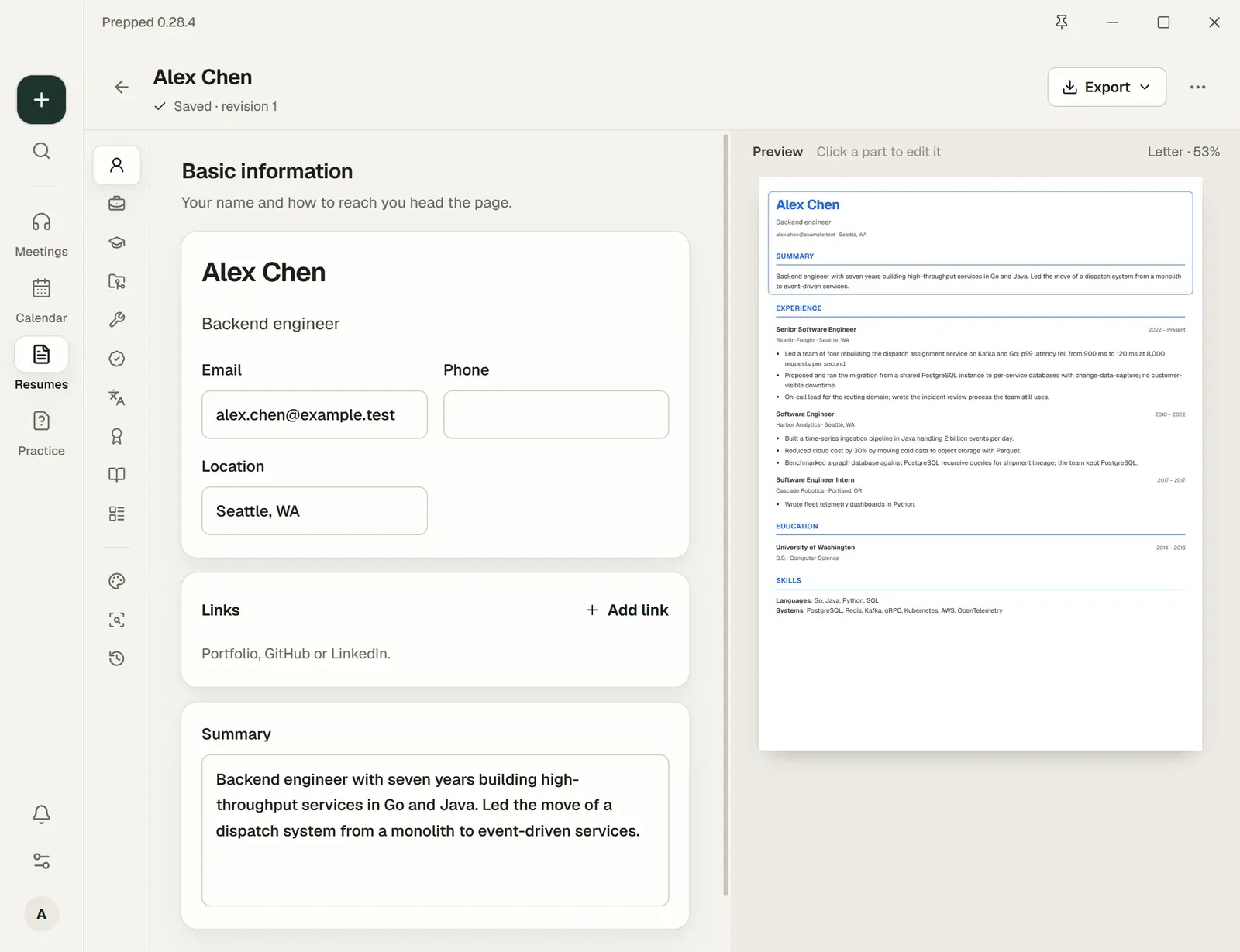
The studio edits one part at a time, such as your experience or education, beside the page as it will print. Entries are listed most recent first, and arrows change their order on the page. The resume saves itself shortly after each change.
Under Design choose the template (Classic or Compact), the page size and other details of the look. Every choice shows on the page at once.
Revisions
Edits made within 15 minutes of each other are kept as one revision. Revision history lists them, with the imported original and any restored versions; Restore this revision brings one back as a new revision, so nothing is lost.
Match a job
Match a job compares the saved resume with a job description you paste. It lines up each requirement of the job with the lines of your resume that support it, points out the job’s terms your resume does not use and suggests rewordings of lines you already have.
Every quoted line is checked against the resume, and the suggestions add no facts you did not write. The comparison is a paid request.
Export
Export the saved resume as PDF, Word (DOCX) or JSON. Exported files are yours; deleting the resume in Prepped leaves them as they are.