The desktop app
How the desktop app runs on Windows and Mac from its first start to its updates, and where it keeps your data until you uninstall it.
The desktop app is the full Prepped, the one that listens to the meeting playing on your computer and keeps the overlay out of screen sharing. Install it from the download page as Getting started describes.
The main window
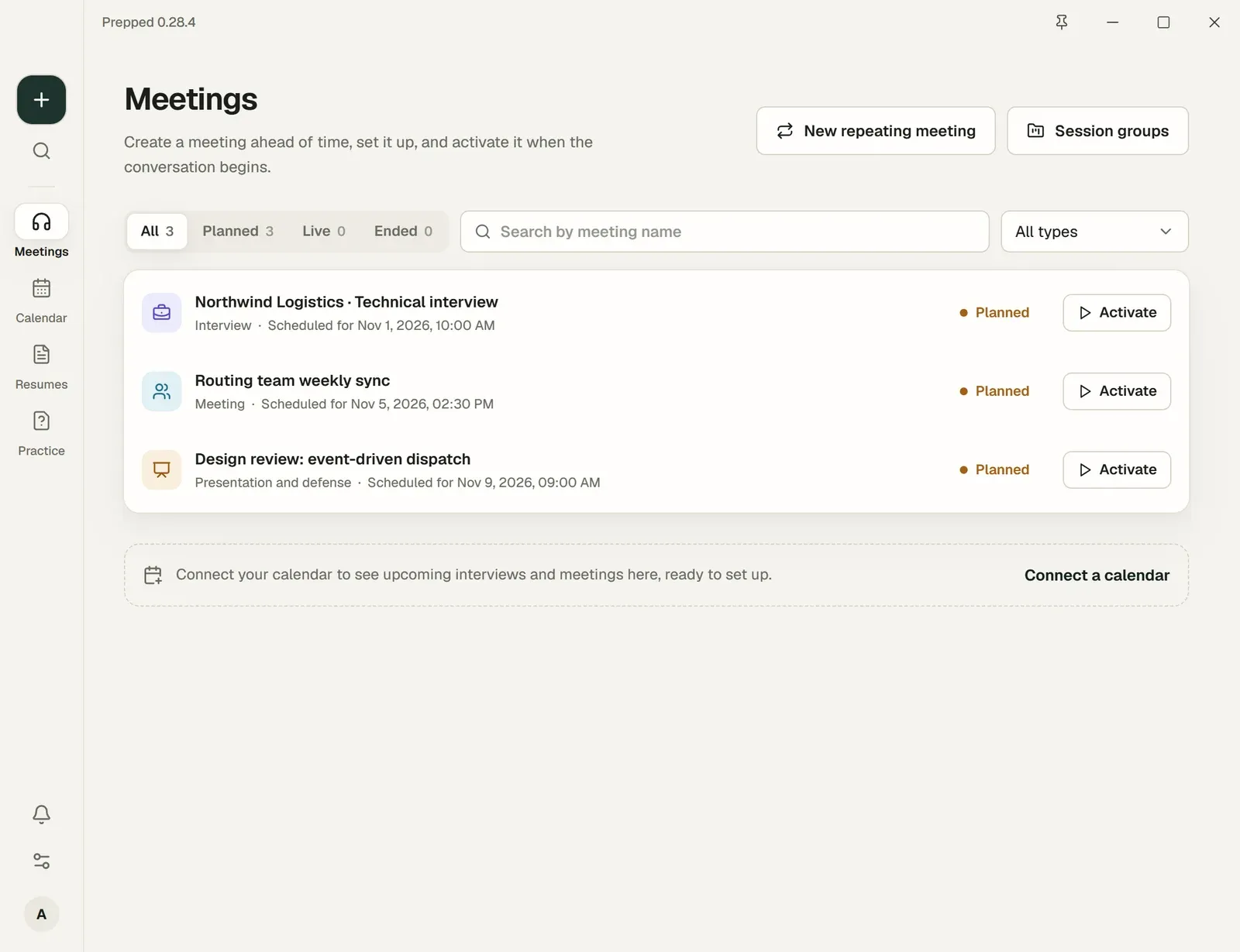
- The bar on the left holds New meeting (the + button), Search (Ctrl+K, or ⌘+K on a Mac) and the pages, from Meetings to Practice. Settings and the account menu are at its bottom.
- The bar at the top shows the version and has a button to keep the window above other windows. Drag the bar to move the window.
- During a meeting a live mark appears in the left bar; it takes you back to the meeting from any page.
- On a Mac during a meeting, the Dock and the menu bar hide themselves, and the main window steps aside when you leave it, so clicking the overlay over a full-screen slideshow keeps you on the slideshow. The Dock icon, the menu bar icon or the overlay’s button for the app brings the window back, and the Dock and the menu bar return when the meeting ends.
The overlay, the small window that shows answers during a meeting, has its own page, Live answers and the overlay.
The first start
- Sign in with the account you created from your invitation. The desktop app signs in to your online account, so the meetings you prepare in the web app are here too. On a wide window, a short tour beside the form shows what Prepped does. The first time you sign in on a computer, Nod, Prepped’s character, comes to the corner of the window to welcome you.
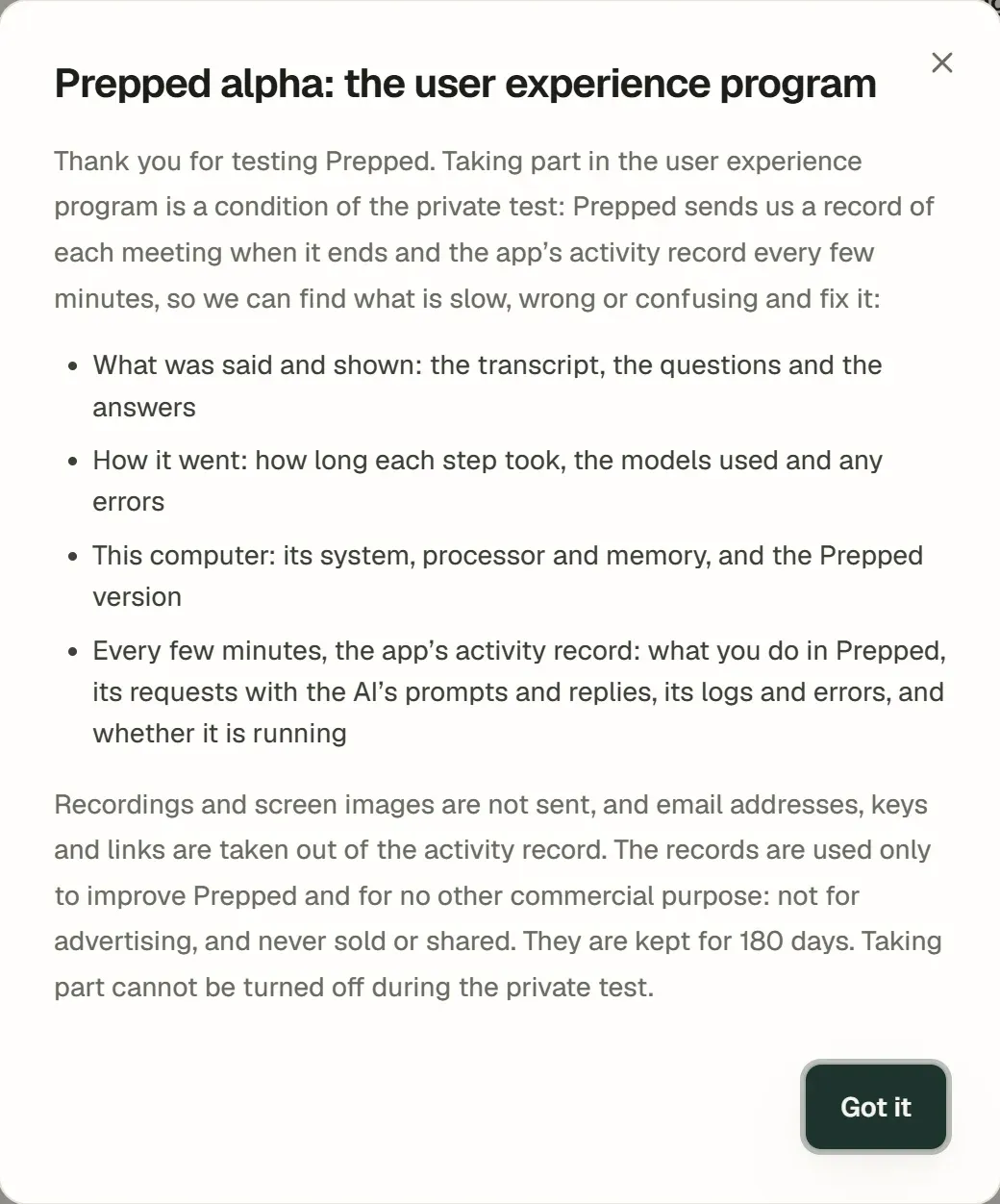
- Prepped tells you about the user experience program, which sends the Prepped team the record of each ended meeting and the app’s activity record every five minutes, so they can find what does not work well. During the private test it is a condition of the invitation and the notice has only Got it; after the test, choose Take part or Don’t take part, and change it any time under Settings, then Privacy. What the records hold.
- The first time you open Settings, its search box is lit with a short note inviting you to type what you want to change in your own words.
- Before the first meeting you activate, Prepped asks you to confirm that the people in your conversations agree to be recorded and transcribed.
Keeping Prepped running
- The tray icon (on by default, Settings, then General) keeps Prepped’s icon at the right end of the taskbar while it runs. Closing the window keeps Prepped running there; the icon’s menu controls a live meeting and has Quit Prepped. With the icon off, closing the window quits Prepped. The tray menu.
- With Show Prepped on the taskbar (on by default, beside the tray icon) turned off, the window has no taskbar button; open it from the tray icon, and minimizing it hides it. One of the two stays on, so Prepped always has a way back to its window. On a Mac the two are Show Prepped in the menu bar and Show Prepped in the Dock; closing the window there always keeps Prepped running, and ⌘Q or Quit Prepped quits it.
- With Start Prepped when I sign in to this computer (off by default) turned on, Prepped starts in the background with its windows hidden, ready for the next meeting.
- With Meeting detection (on by default), when another app starts using the microphone and no meeting is active, the overlay asks whether to activate a planned meeting or start a new one. A meeting app counts at once, and a call or a browser once it keeps the microphone for a while; games and audio tools never count. Close the question twice in a row and it asks whether to stop asking. Prepped only reads which apps Windows or macOS lists as using the microphone. Its switch is in Settings → General → Notifications.
- Meeting reminders come a few minutes before a planned meeting starts; choose how many under Settings, then General, then Notifications.
Updates
Settings, then General, then Version and updates shows the version you run. Check for updates looks for a newer one on the Prepped website, the installer for your system and, on a Mac, your processor; when there is one, Download Prepped with the new version number fetches it with its progress to your Downloads folder, and Install and restart closes Prepped and opens the installer. On a Mac, drag Prepped to Applications again and replace the older one; the new version asks once to be opened, as in Getting started. Open the download page opens the website’s page. With New versions on (Settings, then General, then Notifications), a system notification tells you when a new version is published.
Your meetings on several computers
The desktop app keeps your meetings on this computer and in your online account. Account, then Profile, then Backup and sync shows when they were last synced, and Sync now syncs at once. Otherwise a change goes within about 15 seconds, and changes made elsewhere arrive within a minute.
Everything in Prepped is synced except a few things that stay on each computer.
- Project folders and their indexes belong to the computer that read them.
- Calendar connections stay, since each computer signs in to its calendars itself.
- Meetings set not to keep their history stay too.
What you delete on one device is deleted on the others.
Where the data is
Prepped keeps its data in one folder, %APPDATA%\ai-overlay-online on Windows and ~/Library/Application Support/ai-overlay-online on a Mac.
| What | Where |
|---|---|
| Meetings, documents and project indexes (encrypted) | service in the data folder |
| The database key, protected by your Windows account’s data protection (DPAPI) or your Mac’s login keychain | desktop-master.key in the data folder |
| Window places, shortcuts and speech settings | desktop-settings.json in the data folder |
| The models that detect speech and tell speakers apart | Inside the app, in resources\speech-models in the installation folder on Windows and Prepped.app/Contents/Resources/speech-models on a Mac |
| Meeting records, when you turn them on | The folder you choose, or Prepped meeting records in your Documents folder |
Recordings are not kept unless you turn on meeting records.
Uninstall
- On Windows, quit Prepped from its tray icon, then find Prepped under Windows Settings, Apps, Installed apps and choose Uninstall.
- On a Mac, quit Prepped (⌘+Q, or Quit Prepped in its menu bar icon), then drag Prepped from Applications to the Trash.
Your online account and its meetings stay. To remove what this computer kept too, delete the data folder afterwards, and the meeting records folder if you used one.