After the meeting
What an ended meeting leaves you, from notes and a review of your answers to a transcript you can share.
An ended meeting keeps its transcript and notes on its page, under Meetings.
To pick it up again, choose Continue meeting at the top of its page. The meeting goes live again with what it already has, and in the desktop app Microphone and System audio turn on by themselves, as when a meeting starts.
After a talk with an outline, Follow-up questions beside it starts the questions after the talk: the meeting goes live again with its talk marked as given, so the overlay shows the questions and their answers and none of the talk’s script.
Beside its Overview, Charged opens what the meeting cost, by kind of work, with each answer and note, and Open setup leads to the meeting’s setup and material.
To hold it on a regular day, such as a group meeting every Friday, choose under Repeats beside its Overview. The series starts from the meeting’s time, and its next meeting is made at once. See Repeating meetings.
Meeting notes
Create meeting notes writes notes from the transcript and the material, in the sections of the meeting’s kind, such as decisions and action items for a work meeting. A section the meeting did not cover says “Not mentioned”, and each section holds only what the transcript and material support. Change the sections under Settings, then Overlay, then Quick actions and notes by meeting type. Notes written while the meeting runs are written by the meeting’s model, as a paid request; notes written after it has ended are part of the free work after the meeting.
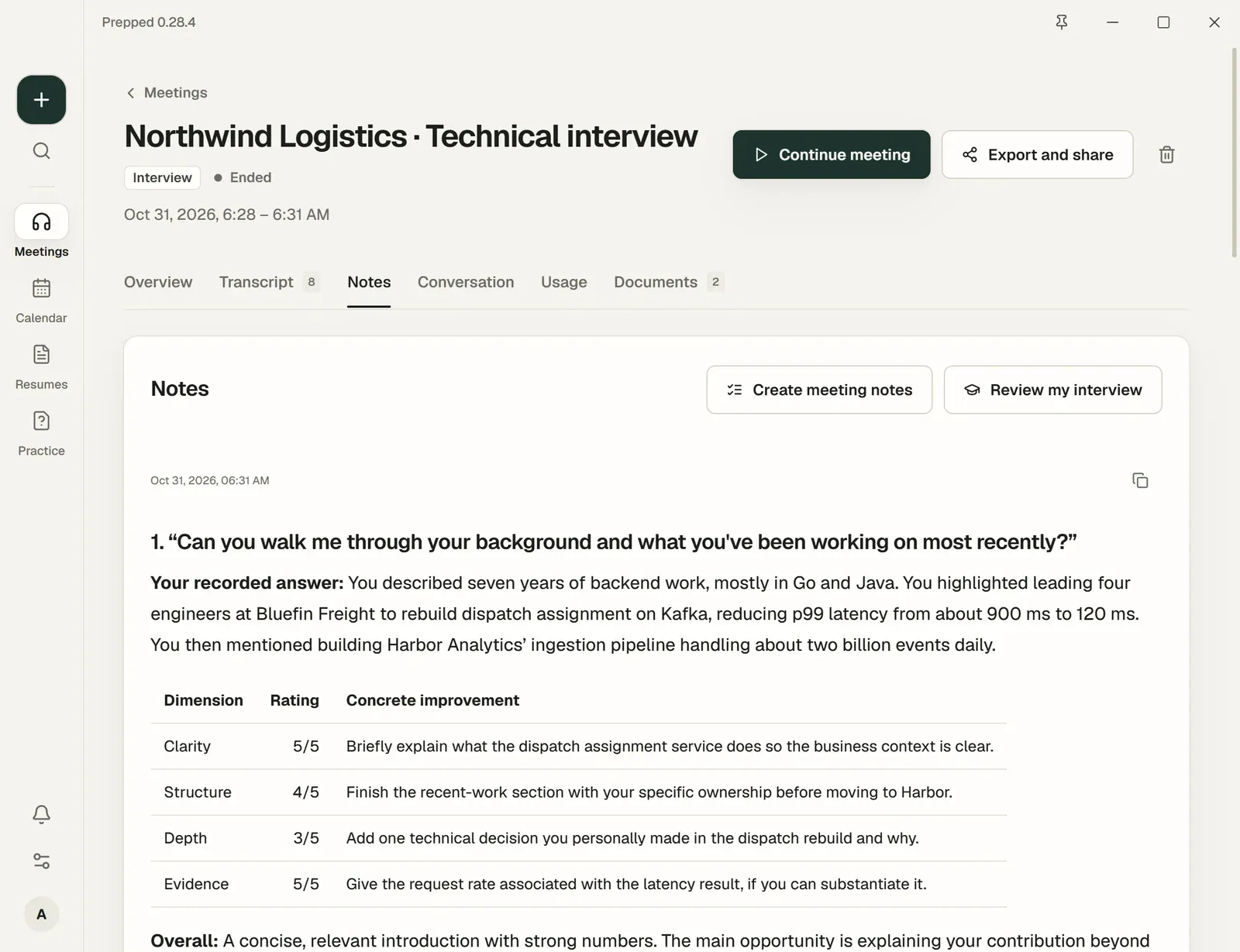
Interview review
When an interview ends, Prepped reviews it by itself at the top of the meeting’s Overview, and a mock interview too. The review is part of the free work after the meeting and uses none of your credits; a meeting that keeps no record is not reviewed. It takes a minute or two, and the page shows how long it has been running.
- Each question the live answers recognised during the interview is a row, none left out, with its verdict and what your answer missed; the interviewers’ closing and words that were no question to you (such as “can you hear me?”) are listed too, without a verdict. When the meeting’s record holds no recognised questions, the review finds the questions in the transcript itself. Your answer and a better one opens the interviewer’s words and yours, quoted from the transcript with the minute they were said, what the answer covered and what was unclear or wrong against the role and your prepared answers, and a better answer built from your own material. What your material does not support is in [brackets], for you to confirm before you say it.
- How you spoke comes next, then The interviewers: what they focused on, what they seemed unsure about and what they said about the team and the process, each with the words it rests on.
- Next steps holds a Thank-you note to copy, what to prepare for the next round and what you said you would do. The interviewers’ closing and your questions to them are not a question of the review and get no verdict; Your questions to them gives one sentence of advice on what you asked.
In a coding round with screen reading on, the review also reads the code on the shared screen; without that record it does not conclude that you wrote no code because the transcript holds none.
Every question goes into your question bank under the meeting’s title, with the review’s rating, so it comes back for practice; Practise these questions opens them there.
A better answer does not join your answers by itself. Preparation and live answers follow your answers, so it joins only when you choose Add to answers under its question, which means “answer like this from now on”; it then shows In your answers. The review marks the answers most worth saying again, at most three, Worth using again, by the same standard as Answers that went well. Not this one turns an offer down: it is no longer marked, and you can still add it. Prepped records each time you add or turn one down, and later reviews take the ones you turned down into account. A better answer you have not added is also kept with its question in the question bank, which says it is not in your answers yet and has Add to answers too; changing the answer there adds it as well.
At the end of the review, New for your memory lists what you said in the interview about your own experience that your resume and material do not hold, such as a project, a role, a result or a figure, each with your words and the minute you said them. It does not depend on how well you answered: an ordinary answer can hold something new. Add to memory puts a fact in your memory, which means “Prepped knows more about you”; live answers and meeting preparation then use it with your resume. It adds no answer. The other way round, Add to answers on a question also adds the new facts said in that question to your memory, without a second click and without adding one twice; the answer then lists them under Also added to memory, and each can be taken out of the memory on its own while the answer stays. Your memory is under Account, Profile, Your memory, where you can read, change, delete and add facts.
The review is written once, when the interview ends. Write again works only after you have changed the transcript (a misheard word corrected, a speaker named, for example), at most once an interview; when it cannot be used, the reason is beside it. A review that could not be written says why, with Report the problem, and can be tried once more.
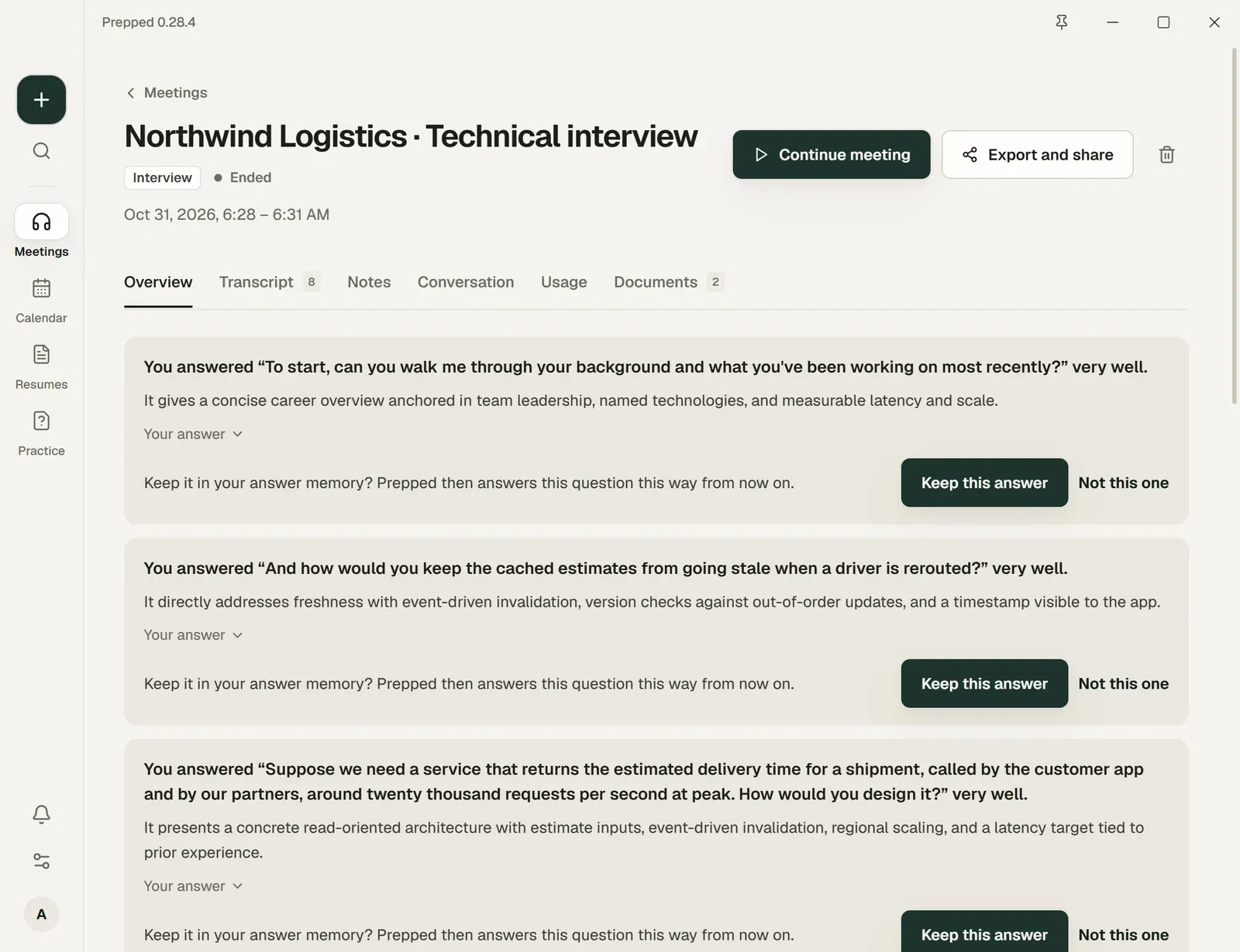
Answers that went well
When a media interview ends, and after the questions of a presentation, Prepped reads the transcript once for your strongest answers to the other side’s questions, as part of the free work after the meeting. Up to three appear at the top of the meeting’s Overview, each with the question and Your answer; the desktop app also tells you in a notification.
- Add to answers puts it in your answers, where it becomes a question of your own in the question bank, under the meeting’s title, with what you said as its answer. Later preparations and live answers answer that question the same way. Open in the question bank shows it there.
- Not this one leaves it out.
Prepped offers an answer only when it is worth saying again the next time the same kind of question comes up, which means it is specific, rests on what you did yourself and is complete. Answers about the arrangements themselves, such as dates, fees or availability, are not offered, and neither are answers no better than one already in your memory. The answers you turn down guide later reviews.
Free work after the meeting
What Prepped does by itself once a meeting has ended uses none of your credits and does not count toward your daily spending limit: correcting misheard words in the transcript, the interview review, finding the answers that went well, a series’ memory, and notes written after the meeting ended. It uses the model provider’s lower-cost model. Each meeting has one allowance for all of it, set by its length: about US$0.03 an hour of meeting (at least US$0.01, at most US$0.09). When a long transcript would need more than is left, only part of it is read; once the allowance is used, Prepped says so and stops. Each account gets up to 30 such runs a day.
What the meeting cost, opened from Charged, lists this work on its own line, paid by Prepped and outside the total.
Talk and questions
An ended presentation with a talk outline shows Talk and questions on its Overview. It compares each section’s actual time with its plan (a section the talk skipped says Not given) and lists every question asked with what you said in reply.
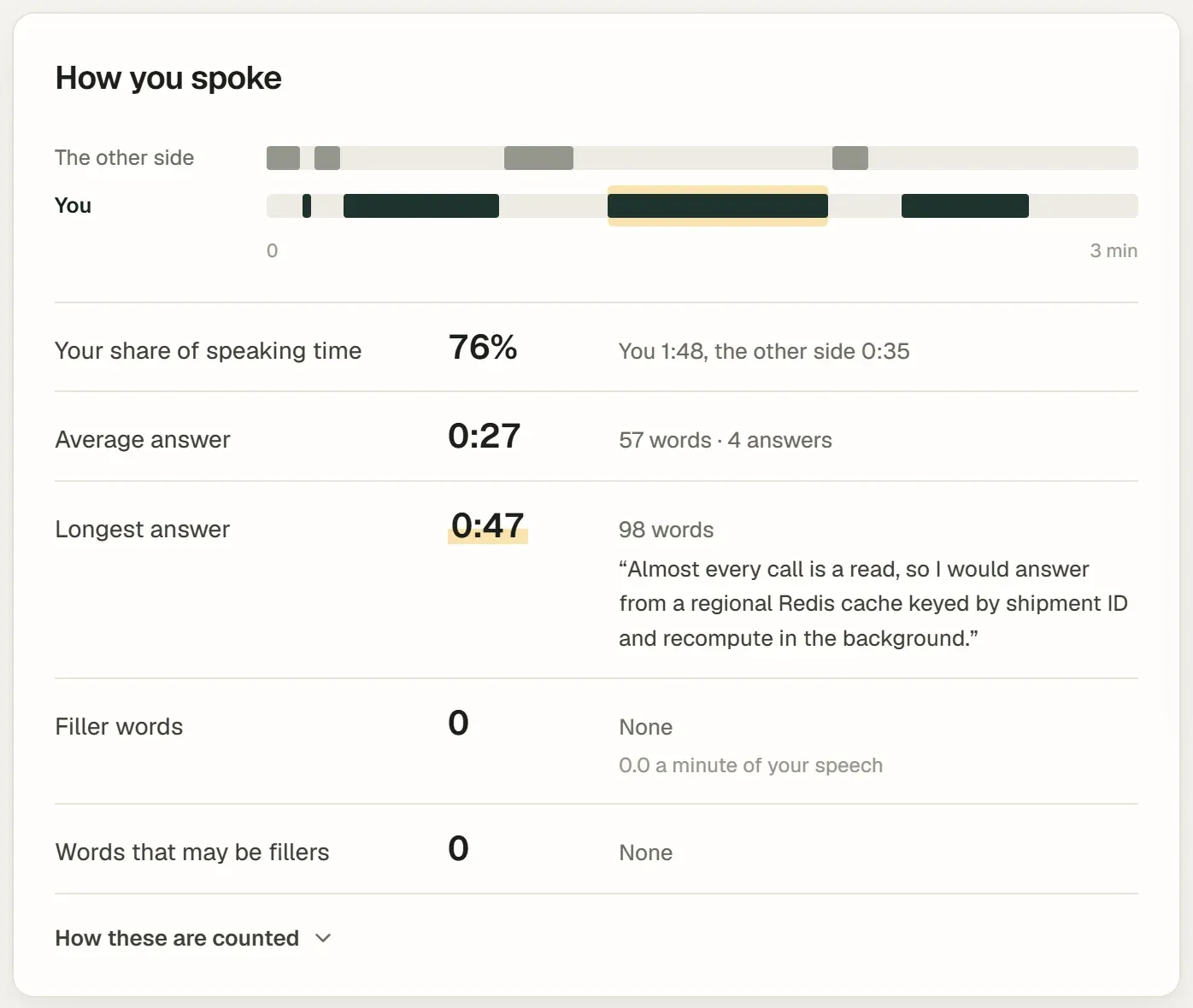
How you spoke
The Overview of an ended meeting shows How you spoke (in an interview, as a part of its review), computed from the transcript without any model request, such as your share of the speaking time and your filler words. How these are counted explains the rules. Without your microphone’s transcript, times or at least two answers, it says what is missing instead.
Export and share
Export and share is on the meeting’s page and in the overlay’s context panel. It makes Plain text, with a time and a speaker on every turn, ready to paste into an AI tool or a chat, or a Word document.
Send it through the share sheet of the phone or browser, download it, or copy it as text. On Windows, the desktop app lists the common apps it finds on the computer, such as WeChat and Slack, copies the file and opens the app for you to paste it, and offers Save as… for any other app. On a Mac it offers the Share menu.
Meeting records
The desktop app can keep a full record of each meeting on your computer, under Settings, then Desktop & audio, then Meeting records (off by default). From the next time you listen, it saves both sides’ recordings, the recognized text and every answer request in the folder you choose, or in Prepped meeting records in your Documents folder. The meeting’s page lists the recordings it saved, also after you turn the setting off. The records stay on your computer; they are not sent to the Prepped service.
Use Choose folder to set the location for future meetings, or Restore default to use the original location. A meeting already in progress keeps its folder. To play an older recording, keep its original folder accessible.
Correct and delete
Edit any line of the transcript and rename speakers on the meeting’s page. Deleting a meeting from its page removes everything in it. See Privacy and security.