Live answers and the overlay
How Prepped answers the other side's questions during a meeting, and how to use the overlay that shows each answer beside your meeting app.
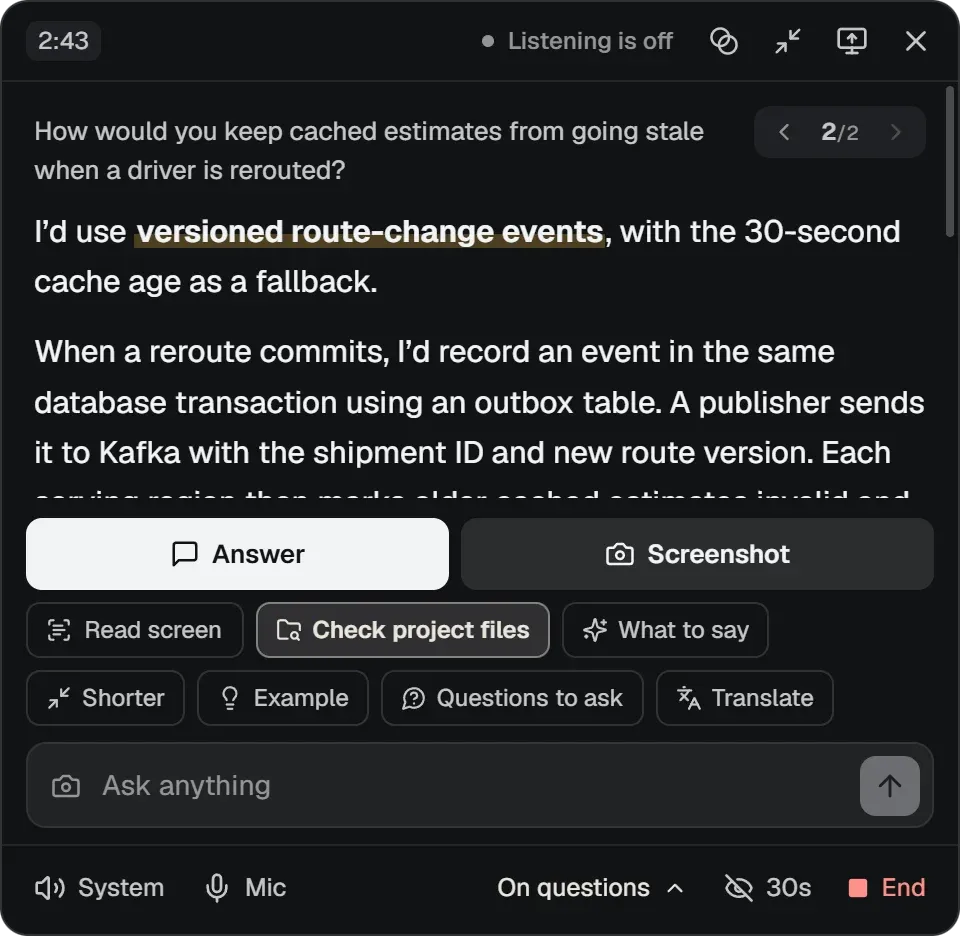
When a meeting is active, the overlay shows the latest question and its answer in a small window above the meeting app. The main window (the dashboard) shows the same meeting with its full transcript.
When Prepped answers
Choose under Answers in the overlay, on the meeting’s page or in its setup.
- When a question is heard (the default). Prepped answers when the other side asks you a question or makes a request; a low-cost model decides this for each turn. A question put to another participant, by name or by going on with one put to them, is shown in the overlay as asked of that person and is not answered unless you choose Answer anyway.
- Every turn. Prepped answers everything the other side says. Each turn is a paid request, so this costs more.
- Only when I ask. Prepped answers only when you press Answer or use its shortcut.
When the other side finished a turn without getting a complete answer, the overlay says why and offers to answer it anyway. If an answer fails or you stop it, automatic answers pause until you choose an answer mode again. More than 30 automatic answers within 5 minutes also pauses them; Resume automatic answers continues.
Wait after they stop talking (Settings, then Overlay) sets how soon Prepped treats the other side’s turn as finished, from quick to patient.
How an answer is made
- An answer starts streaming within a couple of seconds, written for the question from the meeting’s material, the facts preparation found with their sources, and the conversation so far. While it is written, the overlay can show one of the preparation’s lines to say while you think.
- When the question needs more from your project’s files, the overlay first shows a short reply you can say while it looks, then searches the files and shows what it reads: by words, for the exact names and numbers the question or the conversation uses, and in PDF, Word and PowerPoint files and images (a figure is looked at as an image). Answer now stops searching and answers from what is known so far.
- In an interview, a question about the company’s recent news is answered after a web search.
Under an answer that looked in the project files, one line opens to what it looked up: each search with the files and the lines it found, and for each number the answer states, the file, line and page it comes from.
Rate any answer as helpful or not, with a reason if you like. The meeting’s later answers follow your ratings.
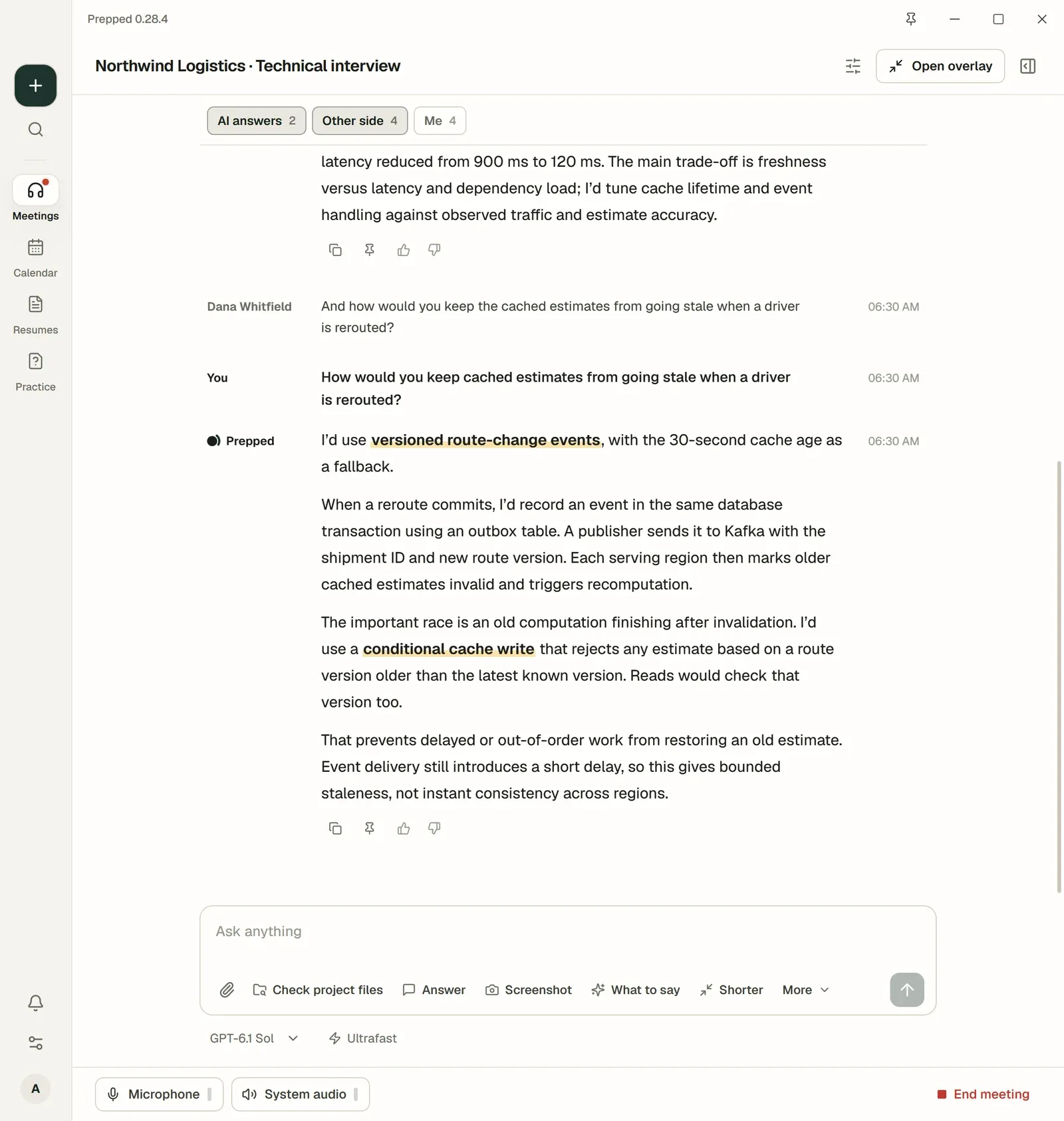
In the main window, AI answers, Other side and Me above the transcript show or hide each kind of line, and the model and Ultrafast under the ask box change for the rest of the meeting.
Reading an answer
- Highlighted words carry the main points of the answer. Glance at them and say the answer in your own words.
- Statements in pencil are not in your material. Confirm or change them before you say them.
- Facts about your project that neither the material nor the files contain appear in [square brackets].
- When you look back at earlier answers, Latest returns to the newest one. Question 3/5 above the answer shows which one you are reading.
When you get stuck mid-sentence
While your microphone is on, Prepped follows what you say. If you stop in the middle of a sentence, or keep repeating a word and fillers (“CFR and PCFR are used for… for… uh…”), Nod appears on a line of its own under the answer, covering no button or text, with the next words that finish it, taken from the answer on screen and the meeting’s material. It goes away as soon as you go on, when the other side speaks, or after a few seconds. Each hint is one small, low-cost AI request. Help when I get stuck mid-sentence under Settings, then Overlay, turns it off.
The overlay’s buttons
| Button | What it does |
|---|---|
| Answer | Summarizes the current question and answers it. Shift+Enter during a meeting. |
| Screenshot | Captures the screen under the pointer and answers what it shows, in the form its kind needs (A question on screen). Ctrl+Shift+Enter during a meeting, or ⌘+Shift+Return on a Mac. |
| Check project files | For a question about your own code or documents, reads the meeting’s project files first, then answers the question you typed or the current one. Shown when the meeting has projects. |
| Read screen | In a project interview on a shared screen, reads each new frame of the shared editor, puts long files back together as you scroll, and answers from them. |
| Ask box | Type a question and send it with the meeting’s context. Up to 3 screenshots can go with one question. In the desktop app, a question about the screen (“the problem on screen”) takes the screen with it, and so does every typed question while Read screen is on. |
| System, Mic | Listen to the other side through system audio and to you through the microphone. With Nearby, one Listen switch and Hold while you answer. |
| End | Ends the meeting and stops listening and answering. |
Code in an answer is coloured by its language, with the language named above it and a Copy button; formulas are typeset, and a process or structure can come as a drawn diagram. They are written out in full whatever the answer form, while the sentences around them follow it.
A question on screen
Screenshot answers the question or task on screen in the form its kind needs; there is no mode to choose first.
- Multiple choice: the letter and the option, then one line on why.
- A blank to fill or a short question: the answer, then one line on why.
- A calculation or estimate: the result, then the steps.
- A coding problem: the approach in a few sentences you can say, the complete code and its complexity.
- A design or open question: the answer, then its key points.
- A message to reply to: the reply itself.
For a question longer than the screen, take it in parts:
- With the top of the question on screen, press the camera button beside the ask box.
- Scroll down and press it again for the next part. One question carries up to 3 screenshots.
- With the last part on screen, press Screenshot, or type your question in the ask box.
Prepped finds where each screenshot continues the one before and joins them into one page, without the part they share; a title bar, side panel or status bar that stays in place while you scroll appears once. The joined page is shown small in the overlay until the next question, and a click shows it full size. Screenshots that do not continue each other, such as two different windows, go as separate pictures.
Each Screenshot answer stays among the overlay’s answers like any other, and the overlay’s arrows, or Previous answer and Next answer, go back to it.
Quick actions
Quick actions are the smaller buttons under the answer. Set them for each kind of meeting under Settings, then Overlay, then Quick actions and notes by meeting type. Interviews, meetings and conversations have Solve code among them from the start; an interview whose Interview round is Coding interview puts it first.
| Action | What it does |
|---|---|
| Solve code | Captures the coding problem on screen and gives the approach, the code and its complexity. |
| What to say | Suggests what to say next, even when nobody asked a question. |
| Recap | Summarizes the conversation so far. |
| Questions to ask | Suggests questions to ask the other side. |
| Agent prompts | In a project interview with an AI coding agent on the shared screen, suggests what to ask it next in a way that shows your judgment. |
| Shorter, More detail, Example, Try again | Make the last answer shorter or longer, add a concrete example from your material, or write a different version. |
| Translate | Translates what the other side just said into your interface language. It shows once you turn on Translate button under the quick actions: interview overlays then have it, and other meeting types get it from the list. |
Under Your actions, write an instruction once and use it as a button; it is sent with the meeting’s transcript and material, like a typed question.
Live translation
In the desktop app, a panel beside the overlay can show the meeting translated into your language while it is heard. Turn on Show the live translation beside the overlay under Settings, then Overlay, then Live translation, and choose one of about 60 languages under Translate into; the panel’s title bar shows the language and chooses another for the meeting it shows. Also translate what I say adds your own words. These choices follow your account to your other computers, so a meeting activated again on another computer translates there too.
- Google Cloud Translation translates what is said once it is recognized, so its translation shows a moment after it is said. When someone pauses in the middle of a sentence, the line is translated again as a whole sentence once it ends. The meeting’s names and terms (its participants, project names and the terms in its material) stay as they are written. Each speaker’s lines stay together.
- The newest sentence is the largest, at the bottom, and its newly translated words light up for a moment; earlier sentences get smaller and fade toward the title bar. While you scroll back to read them, the panel stays where you are.
- While it is on, each question in the overlay shows its translation under it.
- The panel moves, folds and hides with the overlay and is left out of screen sharing as the overlay is. A phone showing the meeting does not show it.
- It needs online recognition, and adds about US$0.50 to US$1.20 an hour of speech to your charges.
- The button in its title bar turns it off.
- One meeting can have its own translation, under Live translation in its answer settings: it is translated on whichever computer runs it, even where the setting above is off. The overlay’s Translate button turns it on or off for the meeting, and the panel’s title bar chooses its language; closing the panel ends it for the rest of the meeting.
On several computers
With an online account, a meeting runs on the computer that starts it. Your other computers stay out of it: nothing opens or listens there by itself. While Prepped is open on them, they search their own project folders and preparation for its answers.
- To see it on another computer too, choose Open here too on the meeting’s page there. It shows the same meeting and overlay. A question typed there, or a button of its overlay, goes to the computer that answers, and the answer shows on both. Up to three computers can have it open; a phone showing the meeting does not count.
- Listen here too makes that computer listen as well: what it hears goes to the computer that answers. When both hear the same sentence, through microphones in one room or the same call on each, it counts once and is answered once.
- Listen and answer here instead moves the listening and answering to this computer. Use it when the call moves to another computer.
- When a computer is offline, the answer says its folders were not searched. When another computer opens or closes the meeting, a short note says so; a start or an end reaches your other computers within a second or two.
- Close on this computer leaves the meeting going on the others. End meeting on the computer that answers ends it everywhere, after asking.
Settings, then Your devices, lists every computer signed in to your account: its name (rename this one), Windows or Mac, its Prepped version, whether it is online and its project folders. There you can stop other computers from searching this computer’s folders, have this computer listen whenever you open a meeting from another one, sign another computer out, and, while a meeting is live, see and change what each computer does in it.
An account used only on this computer keeps each meeting on it.
During a talk
In a presentation with a talk outline, the overlay and the live page follow your talk.
- A strip under the overlay’s header shows the section you are in, the time used and left, and whether the talk would run over at this pace. The clock starts when you begin speaking; Start the clock starts it at once.
- Prepped checks what you say against the outline about every 15 seconds, moves to the section you reached and counts the points you have made. Your microphone is what it follows; when one microphone hears the whole room, it follows everything heard. The arrows move to another section by hand. Once the last section is said, the talk ends by itself and the strip says the questions have begun; Back to the talk there takes it up again.
- Below the strip is what to say next in the section, written when the meeting was activated (until then, the section’s points). The outline’s minutes are only a rough guide, so a long section is never cut short; only the talk’s length counts. When the talk would run past it, the overlay lists what to leave out (the points marked as such, the latest first), and when the time is up it says to go to your conclusion. Once a section’s points are made, it shows the sentence into the next one.
- A question during or after the talk is answered with the talk in mind, including what you already covered and what a later section will show. Under the answer, Back to the talk gives the sentence that brings you back and your next point; Show the talk returns to it, and so does reaching the next section.
- When Prepped follows your slides, the desktop app looks at the screen each time it settles on a new slide, in a slideshow, a presenter view or a shared window, and reads which slide it is. The strip shows the slide and the talk moves on to its section. A few seconds later, Now shows the next sentences to say on that slide and the key words for the rest, fitted to what you already said, the time left, the questions asked and any slide you skipped. Going back to an earlier slide leaves the talk where it was. The overlay’s Read screen button turns this off and on.
- A section that another presenter gives shows who presents it and its slides, such as Maya presents · slides 1–9. Prepped follows their slides and writes nothing for you to say, and before your part comes it shows its first sentence under Your part.
The checks of what you say and of the slide on screen are small paid requests to your provider’s low-cost models, counted with the meeting.
Arranging the overlay
- Drag it by its top edge. The fold button turns it into a small circle showing Nod, Prepped’s character, whose face follows the meeting and nods when an answer is done. Click the circle to open the overlay again.
- Overlay layout shows one answer at a time, or every question of the meeting in a column on the left, with its translation while live translation is on, and the chosen one’s answer on the right. The second layout makes the overlay 260 px wider.
- Overlay colors can be dark (the default), light, high contrast, glass, or your own background and text colors. A pair whose contrast is too low for answers cannot be saved. Glass lets a little of what is behind the overlay show through, with any colors; with it, answer text keeps its contrast over a dark or a light window. Overlay size makes text and controls smaller or larger. Overlay opacity goes from 20% to 100%.
- Click-through, from its shortcut or the tray menu, lets clicks pass to the window below until you turn it off. Timed hiding, from the overlay’s hide button or its shortcut, hides the windows for a set time (30 seconds unless you change it in Settings → Overlay → Hide temporarily) and brings them back without taking the keyboard.
- Show the live transcript in the overlay, when off, shows each question once it is complete, rephrased into clear sentences with the asker’s meaning kept.
- The overlay never appears in screenshots, recordings or screen sharing on Windows 10 version 2004 and later, and on macOS 26 and later. See Privacy and security.
The first time you activate a meeting, a short guide points out the overlay’s controls. Play the overlay guide under Settings, then Overlay, shows it again. Before that, the new meeting page and your first activation show the overlay playing a sample answer, with the shortcut keys you have turned on.