Calendars and groups
Connect Google or Outlook so upcoming events become meetings, and keep the meetings of one series together so each one builds on the last.
Interviews and meetings usually start in a calendar. Prepped reads your calendars, so the next ones are waiting on Calendar and Meetings, ready to set up, and groups keep a series of them together.
Connecting a calendar
On Calendar, while no calendar is connected, Connect your calendar says what a calendar brings and offers the same choices as Settings, then Connections, then Calendars.
- With Connect Google Calendar or Connect Outlook or Microsoft 365, sign in to the account, then choose the calendars Prepped reads. Each is shown where the service offers it.
- Import an invitation (.ics) adds one event from an invitation file.
Prepped only reads your calendars; it never creates, changes or answers events. Disconnect or Remove takes the calendar’s events out of Prepped; meetings made from them stay, no longer following the calendar.
After the first reading of an account, and whenever you turn on another of its calendars, Prepped asks which of its upcoming interviews and regular meetings to set up, all ticked. An interview becomes a scheduled meeting, and a regular meeting becomes a group that follows the calendar and sets up each of its meetings. What you leave unticked is not offered again, on this device or another one signed in to your account; it stays on Calendar, ready to set up.
From events to meetings
The next two weeks’ online meetings, the events with a video call link, show on Meetings under the meetings you made, with Set up meeting to turn one into a meeting of the kind it looks like; any other event is set up from Calendar. Each calendar can also add meetings by itself, with Interviews, by themselves or Every online meeting, by itself; the default is Only the events I set up.
A meeting made from an event follows the event’s time and the fields you have not changed, says when the event is cancelled, and opens the event’s call when you activate it. A reminder comes a few minutes before it starts (Settings, then General, then Notifications).
The Calendar page
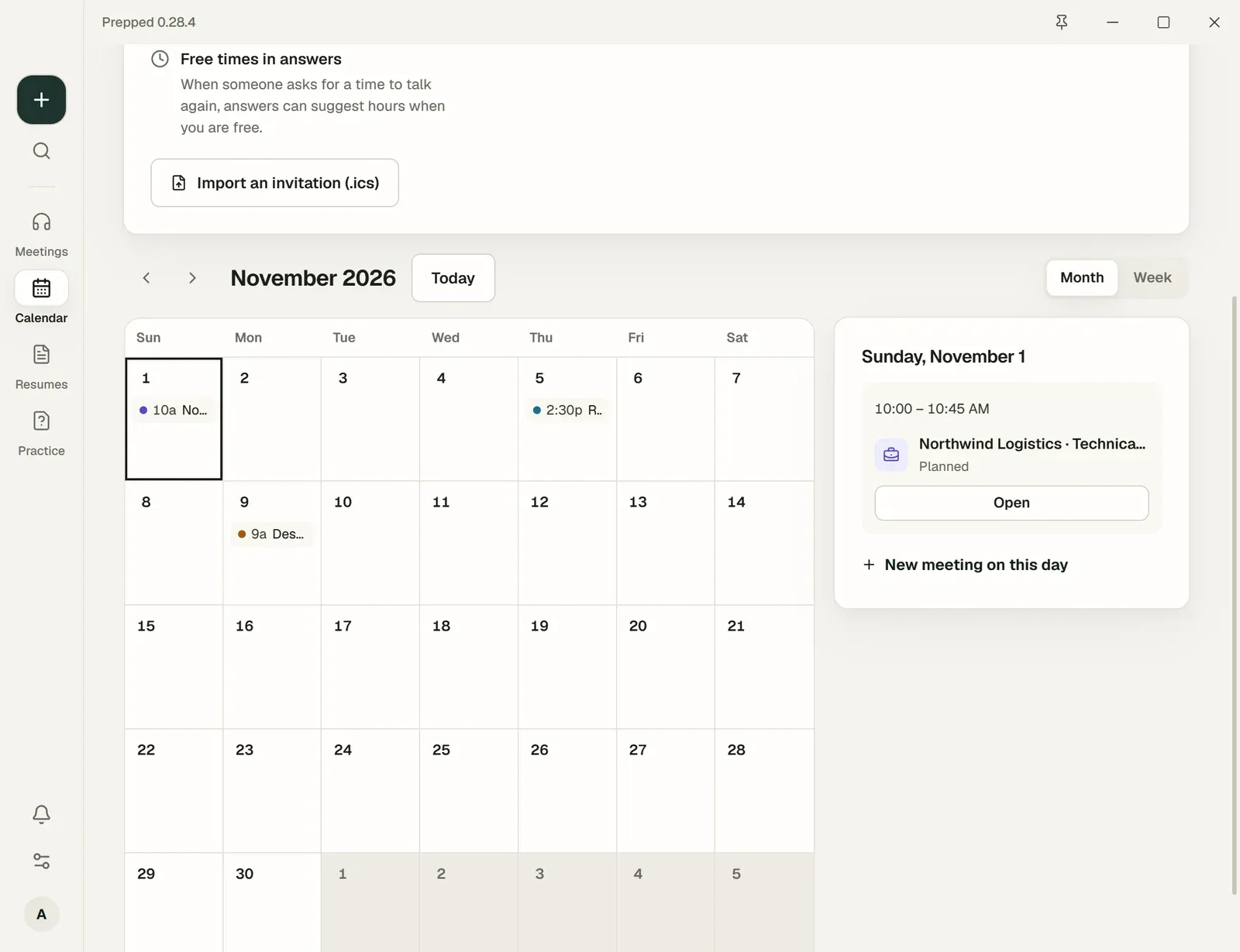
Calendar is where what your calendar has coming up becomes meetings.
- To set up from your calendar lists the next two weeks’ interviews and meetings, each with Set up meeting, and then regular meetings with Set up the series, which makes a group that follows the calendar and sets up each of its meetings a week ahead. Series following your calendar shows those groups, and Set up already opens the meetings made from your calendar.
- Beside it is what your calendar does in Prepped, such as the reminder before each meeting, each with a link to its place in Settings.
- A calendar that stopped reaching Prepped is named at the top, with Connect again for an account whose sign-in ended or Read again for a calendar that could not be read.
- Below are your meetings and your calendars’ events by week or month. The day you choose offers Join call for an event with a call, Set up meeting for one without a meeting yet (for a regular meeting, the series button sets up the whole series), and New meeting on this day.
Free times in answers
When someone asks for a time to talk again, an answer can propose hours when you are free. Turn on Let answers suggest times when I am free under Free times and working hours, and set your time zone and working hours there. The AI provider sees the free hours only, never your events.
Groups
A group keeps a series of related meetings together, such as a weekly meeting or the rounds of one job. Open Groups at the top of Meetings, choose New group, give it a name and a meeting type, and add material and settings. A group of the interview type is a job target, and Groups lists the job targets first.
- Material added to the group, such as documents or project folders, serves every meeting in it.
- Settings of the group start each new meeting made in it. Existing meetings keep theirs.
- Earlier meetings inform the next ones. Preparing a meeting of the group uses the transcripts and notes of the group’s ended meetings, with the questions asked there and what you answered, so the next round follows up on them.
New meeting in group makes the next meeting of the series. When you plan an interview, Set up, with every meeting of this series in one group makes the group for you. Deleting a group deletes its material; its meetings stay.
Repeating meetings
A meeting that takes place every week, such as a weekly group meeting, is set up once.
- On the New meeting page. Choose the first meeting’s time under Scheduled for, then how it repeats under Repeats, such as every week on its day or every month on the same weekday. Create meeting makes the meeting and a group named after it that keeps the series, with the meeting’s type and setup as the group’s settings. New repeating meeting, above your repeating meetings on Meetings, opens the page with Repeats already chosen, and so does a search for “weekly meeting” or “recurring” in Settings or in the search box (Ctrl+K, or ⌘+K on a Mac).
- On a meeting’s page, before or after it. A meeting made earlier repeats from its time as soon as you choose under Repeats, on its own page or, once it has been held, beside its Overview under Meetings. A meeting already held without a time repeats from the quarter hour nearest to when it started, and its next meeting is made at once.
- On a group’s page. Under Repeats, turn on Meetings of this group repeat and choose how often and when the meetings take place. A series made from a meeting changes here too, and its meetings count as an hour long until you set another length.
Custom… at the end of the Repeats list sets a repeat of your own. Choose how often, from every week to every 3 months, and for a weekly repeat the days, such as Tuesday and Thursday every 2 weeks; the meeting’s own day is always one of them. On a meeting already saved, the repeat starts when you choose Save repeat.
As soon as the group has no meeting to come, its next meeting is made with the group’s settings and those of its latest meeting; the group’s page lists the next three. Meetings shows each series above the meetings with how it repeats and its next meeting, and each of its meetings still to come says how it repeats. A meeting you delete because it will not take place is not made again; the following one is. A group that follows a repeating event of your calendar gets its meetings from the calendar instead, a week ahead.
Series memory
When a meeting of a group ends, Prepped reads its transcript once, after correcting misheard words, and keeps the group’s Series memory, such as decisions and action items with who does them and by when. When a later meeting reports an action done, it is marked done; a decision that changed is replaced. Nothing is kept without the words it rests on, and What was said under each entry shows them, with the meeting they come from.
- On the group’s page you can edit the entries; a later meeting never overwrites your corrections.
- The group’s next meetings use the memory when they prepare and answer, and speech recognition hears its names and terms. A planned meeting of the series shows what is still open under From the series, with the commits and changes of its projects since the previous meeting.
- Reading a one-hour meeting costs less than one cent with the low-cost model of the meeting’s provider. Keep a shared memory of this group’s meetings turns it off for the group.