Projects, repositories and portfolios
Give a meeting your own work, from project folders to portfolios, and see what Prepped reads from it.
When a conversation may be about your own work, give the meeting the work itself, such as a project’s code or a portfolio of your case studies. Answers then quote what your project really does instead of guessing. Each of these belongs to its meeting, or to its group for every meeting of the group, up to 10 projects and 3 portfolios each.
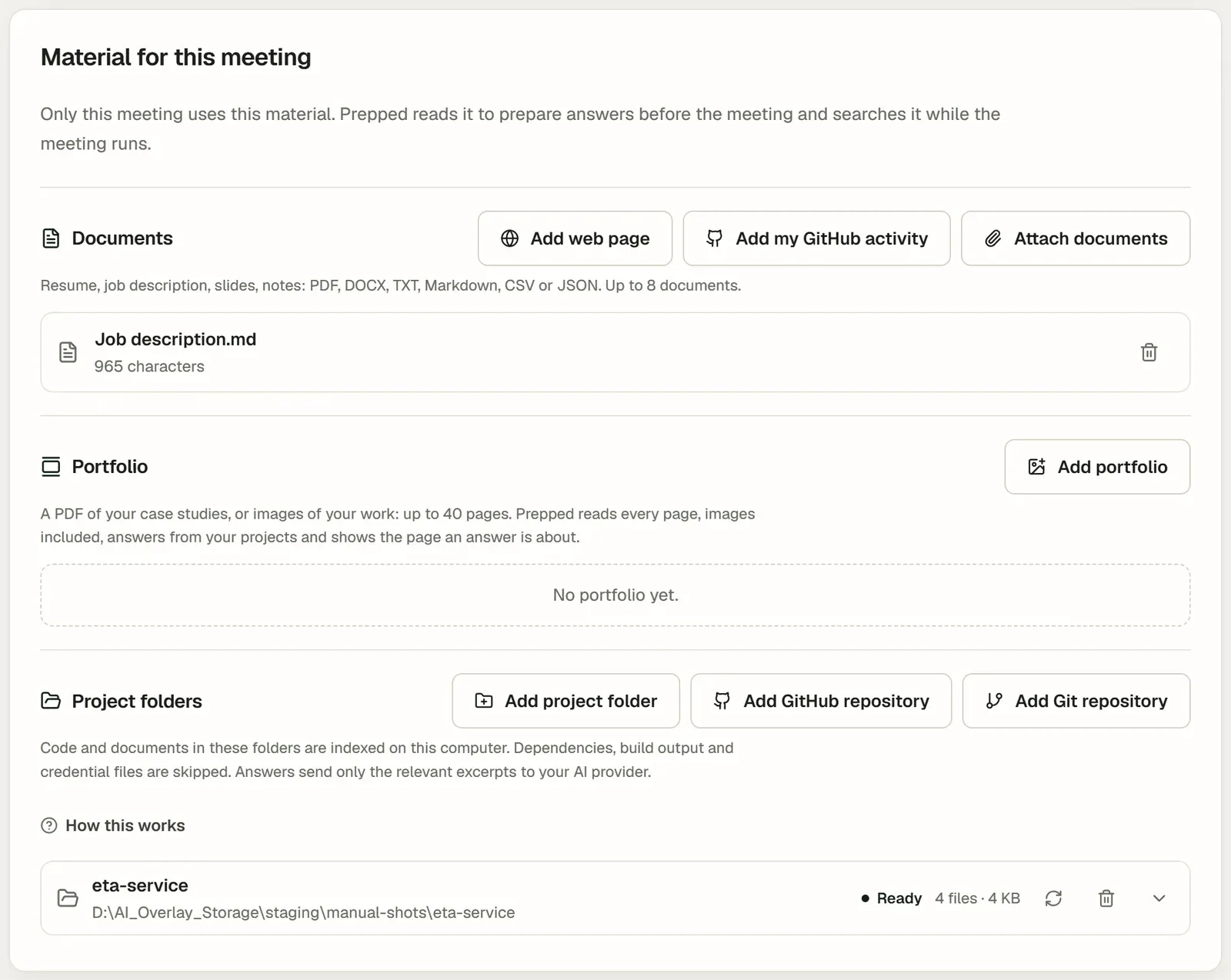
Project folders
In the desktop app, under Material for this meeting, choose Add project folder and pick a folder on your computer. Prepped lists every file of the folder and builds a searchable index of its code and documents on your computer, without a model request; the list shows Indexing and then Ready with the number of files. The text of PDF, Word and PowerPoint files is indexed too, each line with its page or slide, and images, such as figures, are listed so that an answer can look at one. Files a program wrote in bulk (results, logs, game records) and toolchains inside the project can be searched for exact text but are not in the word index.
- The index leaves out dependency folders, build output and known credential files, and removes recognized secrets, such as keys, from what it keeps.
- Your files are only read, never changed. Removing the project, or deleting its meeting or group, deletes the index; the folder stays as it is.
- After you change the files, choose Reindex so answers read the current version; only the files that changed are read again.
GitHub and other Git hosts
- Add GitHub repository takes
owner/nameor the repository’s address, and a branch, tag or commit if you want one other than the default branch. Prepped downloads that version’s files and indexes them like a folder; Update from GitHub fetches the newest commit. Public repositories need no sign-in. For private ones, sign in to GitHub on this computer with the GitHub CLI (gh auth login); the panel then lists your repositories to add with one click. Prepped reads the GitHub CLI’s sign-in at each request and never stores it. - Add Git repository adds a repository from another host, such as GitLab or a company server, by its clone address (
https://…,ssh://…oruser@host:path). Git must be installed; Prepped takes the newest commit without its history, up to 500 MB, and uses the sign-in Git already keeps on this computer. Never put a password or token in the address. - Add my GitHub activity adds your recent GitHub activity, up to the last 30 days, as a document when the GitHub CLI is signed in.
- The same repository twice is read once. When a meeting, with its group’s material, has both a folder cloned from a repository and that repository from GitHub or another Git host, or two clones of it, Prepped reads the folder on your computer, which holds your work not yet pushed; between two folders, or two downloaded copies, it reads the one added first. The other entry stays in the list as Not read and names the entry that is read. When you remove that entry, the other one is read in its place.
Settings, then Connections shows whether the GitHub CLI and Git are installed and signed in.
What a project is about
Open a project in the list to see the facts Prepped collected about it. Under What this project is, describe the project, your part in it, important decisions and verified results; answers start from it. Prepped can also write a first summary from the files, as a paid request with the model you choose.
Projects built with AI coding tools carry notes those tools keep, such as AGENTS.md or CLAUDE.md in the project and the memory some tools keep in your home folder. Prepped reads them in place of the code they describe, for the decisions and conventions they record. Under AI coding tools, Choose tools sets which tools a project was built with. These files are only read.
Portfolios
Add portfolio takes a PDF of up to 40 pages, or up to 40 images, of your case studies or designs. A model with screen support reads every page, images included, as a paid request; the panel shows the most it can cost before you start, and the reading is saved as a document of the meeting. During the meeting, an answer about a case study shows the page it comes from. A meeting or group holds up to three portfolios.
In the meeting
- Questions about your projects are answered by looking up what the question needs: searching by words, by exact text such as a name or a number, by file name, reading lines of a file, or looking at an image. Only what is found goes to your AI provider, never the whole project. A line under the answer says what it looked up, such as the files it read; open it for the files, the lines found and where each number in the answer comes from.
- Check project files, in the overlay and in the meeting’s ask box, reads the project files first for the question you typed or the current one. It is shown when the meeting has projects.
- Agentic project on the shared screen is for an interview where you work with an AI agent in a web editor that you share. Turn on Read the shared screen when this meeting starts, or use the overlay’s Read screen at any time. Prepped reads each frame once it settles, puts files back together as you scroll, and answers from them; Agent prompts suggests what to ask the agent next. Each frame is read by your provider’s low-cost model with screen support, within your spending limits.
Preparation does not read every file ahead: it learns where things are in each project and finds the facts the meeting is likely to need, with where each comes from, as Preparing a meeting describes.