Your account, billing and support
Manage your Prepped account and follow what you spend on the Billing page. When something goes wrong, send feedback or write to the team.
Your account
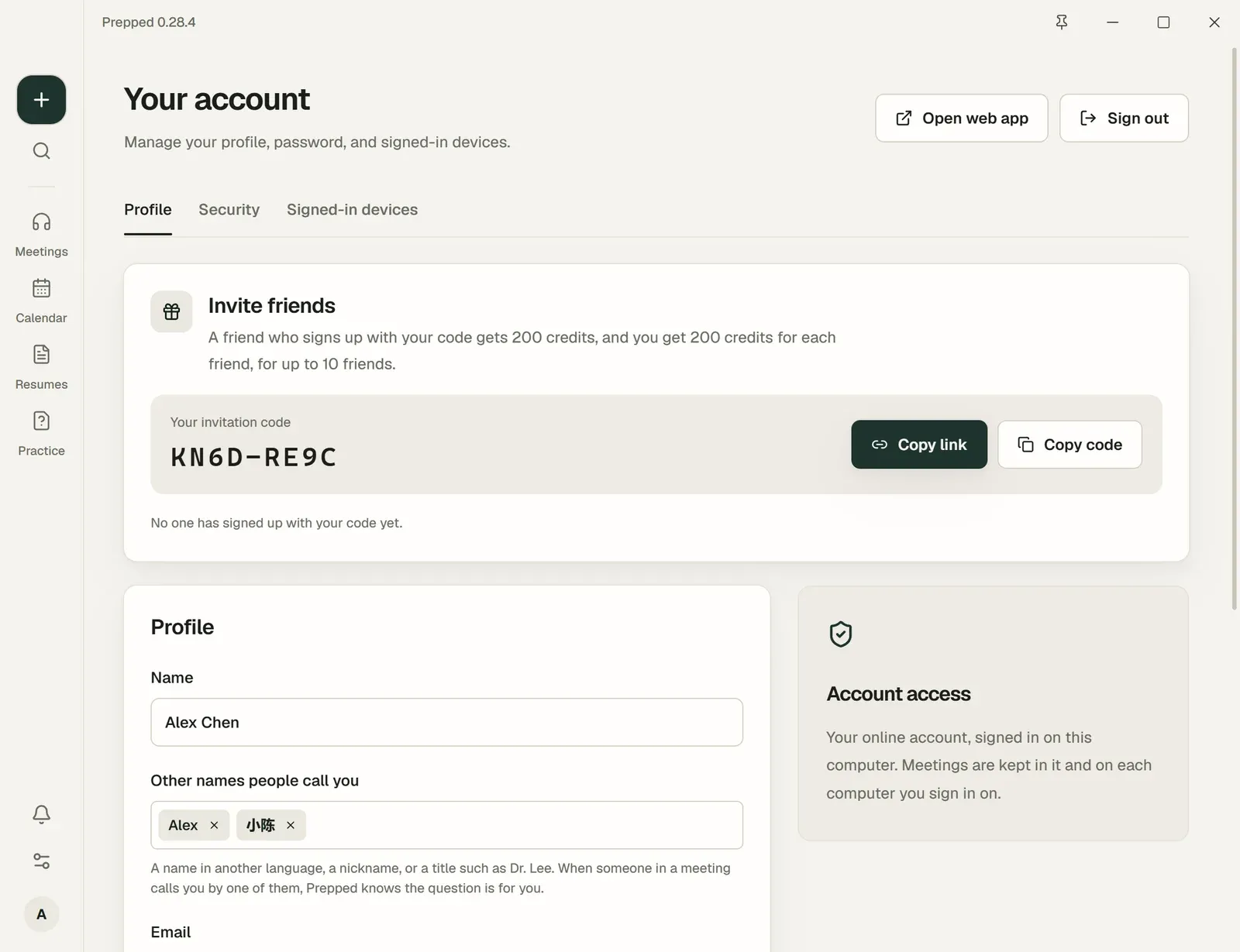
Open the account menu, then Account. It has three tabs.
- Profile holds your name and Other names people call you, and in the desktop app Backup and sync (your meetings on several computers). Invite friends is here too when invitations are open.
- Security is where you change your password or choose Delete account. In the desktop app your password and your account belong to your online account, so you change them and delete the account in Prepped on the web; Open Prepped on the web takes you there.
- Signed-in devices lists each device signed in to your account, with when it was last active. Sign out other devices signs out all but this one; Revoke session signs out one.
Other names people call you holds what people call you in meetings, such as a nickname or a title like Dr. Lee. Type one and press Enter; you can add several. When someone in a meeting asks a question using one of them, Prepped knows it is for you; questions without them are judged and answered as usual. The names belong to your account, so each computer you sign in on and the web app have the same ones.
Open web app opens the same account in your browser, and Sign out signs this device out. A forgotten password is reset from Forgot password? on the sign-in page of Prepped on the web; in the invited test, ask the person who invited you for a reset link.
Signing in with Google
On the sign-in page, Sign in with Google signs you in with your Google account, and on Create account, Sign up with Google creates your Prepped account with your Google address and name. In the invited test a new account still needs your invitation, so open your invitation link or enter the code, then choose Sign up with Google. If you already have an account with the same email address, Google signs you in to it, and your password keeps working.
While Google sign-in is closed for the private test, the button stays on the page, and choosing it shows a short note under it that says so; sign in with your email address instead.
In the desktop app the button opens Google’s page in your default browser. Sign in there; the browser then says you are signed in, and Prepped opens your account by itself.
Signing in asks Google only for your email address, name and profile picture. Connecting Google Calendar is a separate permission, given under Settings, then Connections (Calendars). Google user data explains what Prepped keeps from Google and how to remove it.
An account created with Google has no password, and Security says so. To add one, choose Forgot password? on the sign-in page (in the invited test, ask the person who invited you for a reset link). To delete the account, type its email address to confirm.
Billing
Billing shows your available credits, your Daily credit limit and, under Usage activity, every paid request with its cost. Buying credits is not open in the invited test; to get more, write to us from Send feedback or the contact page. Models, credits and limits explains how credits and limits work.
Messages
The bell at the bottom of the left bar (in the web app, in the bar at the top) opens Messages, where answers to what you sent us and notices from Prepped arrive. Turn off Prepped’s news and offers under Settings, then General, then Notifications, then Product news and offers; the rest always arrives.
Sending feedback
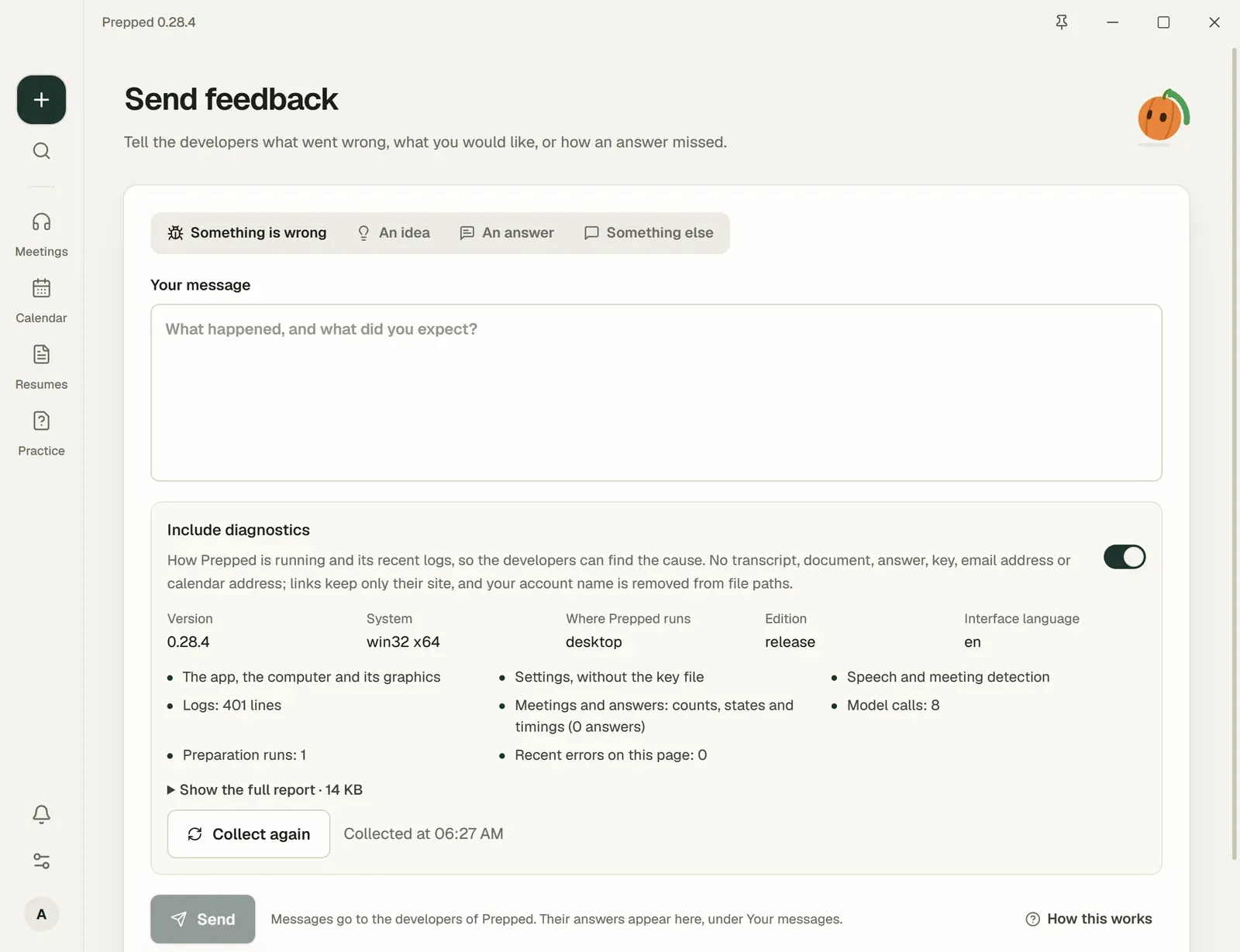
The account menu’s Send feedback sends a message to the Prepped team. Choose what it is about, such as Something is wrong, and write it. With Include diagnostics, a report on the app and your latest meetings goes with it, with their state and timing but never their text. Show the full report shows exactly what will be sent; keys and email addresses are removed. Rating an answer Not helpful offers Tell the developers, which sends that answer and its question with your note.
Answers from the team arrive under Your messages on the same page and in Messages.
Ratings after meetings
After some meetings, Prepped asks How did we do? with five stars and a comment. When it asks, and where it goes.
Other ways to reach us
The contact page takes any message, also without an account. The help page shows whether the service is running and answers common questions.