Shortcuts and settings
The desktop app's global keyboard shortcuts with their defaults, and how to find a setting by its tab or by searching for its name.
Keyboard shortcuts
While Prepped runs, its shortcuts work in every app, and they take the same keys from other apps. So only four are on by default; each of the others has a suggested key, ready to turn on. Under Settings, then Desktop & audio, open Global keyboard shortcuts, which shows how many are on, and turn one on or type your own. If another app already holds a key, that row says so.
| Action | Windows | Mac | On by default |
|---|---|---|---|
| Answer the current question (during a meeting) | Shift+Enter | Shift+Return | Yes |
| Capture the screen under the pointer and ask (during a meeting) | Ctrl+Shift+Enter | ⌘+Shift+Return | Yes |
| Show or hide the overlay | Ctrl+Alt+Backspace | ⌘+Option+</kbd> | Yes |
| Quit Prepped at once, without asking, ending a live meeting | Ctrl+Alt+Esc | ⌘+Esc | Yes |
| Stop the answer being written | Ctrl+Alt+Shift+Backspace | ⌘+Option+Shift+</kbd> | No |
| Emergency hide, which hides the windows and stops listening | Ctrl+Alt+Shift+X | ⌘+Option+Shift+X | No |
| Previous or next answer | Ctrl+Alt+Shift+, and . | ⌘+Option+Shift+, and . | No |
| Scroll the answer | Ctrl+Alt+Shift+Page Up and Page Down | ⌘+Option+Shift+Page Up and Page Down | No |
| Start or stop listening | Ctrl+Alt+Shift+M | ⌘+Option+Shift+M | No |
| Type a question (the ask box takes the keyboard for a moment) | Ctrl+Alt+Shift+Q | ⌘+Option+Shift+K | No |
| Show or hide the main window | Ctrl+Alt+Shift+O | ⌘+Option+Shift+O | No |
| Switch to the next available model | Ctrl+Alt+Shift+N | ⌘+Option+Shift+N | No |
| Click-through, so the overlay stops taking clicks until pressed again | Ctrl+Alt+Shift+T | ⌘+Option+Shift+T | No |
| Hide for a set time (30 seconds unless you change it) | Ctrl+Alt+Shift+B | ⌘+Option+Shift+B | No |
| Move the overlay | Ctrl+Alt+Shift+arrow keys | ⌘+Option+Shift+arrow keys | No |
| Lower or raise the overlay’s opacity | Ctrl+Alt+Shift+- and = | ⌘+Option+Shift+- and = | No |
Other apps use Shift+Enter for a new line, so Prepped takes the answer and screenshot keys only while a meeting is live and gives them back when it ends. The suggested keys were checked against the published shortcuts of common meeting apps, browsers and editors. On Windows the overlay key uses Backspace because on many keyboards, such as German or French ones, Ctrl+Alt with a letter types characters such as @ and €.
Find a setting
The search box at the top of Settings finds any setting, feature or button by the words you would use, in any of the six languages. Type “dark mode” and choose Appearance, or “calendar” for the calendar connections. Prepped opens the right page and highlights the control, and you change it right there. Ctrl+K, or ⌘+K on a Mac, searches your meetings, groups and pages.
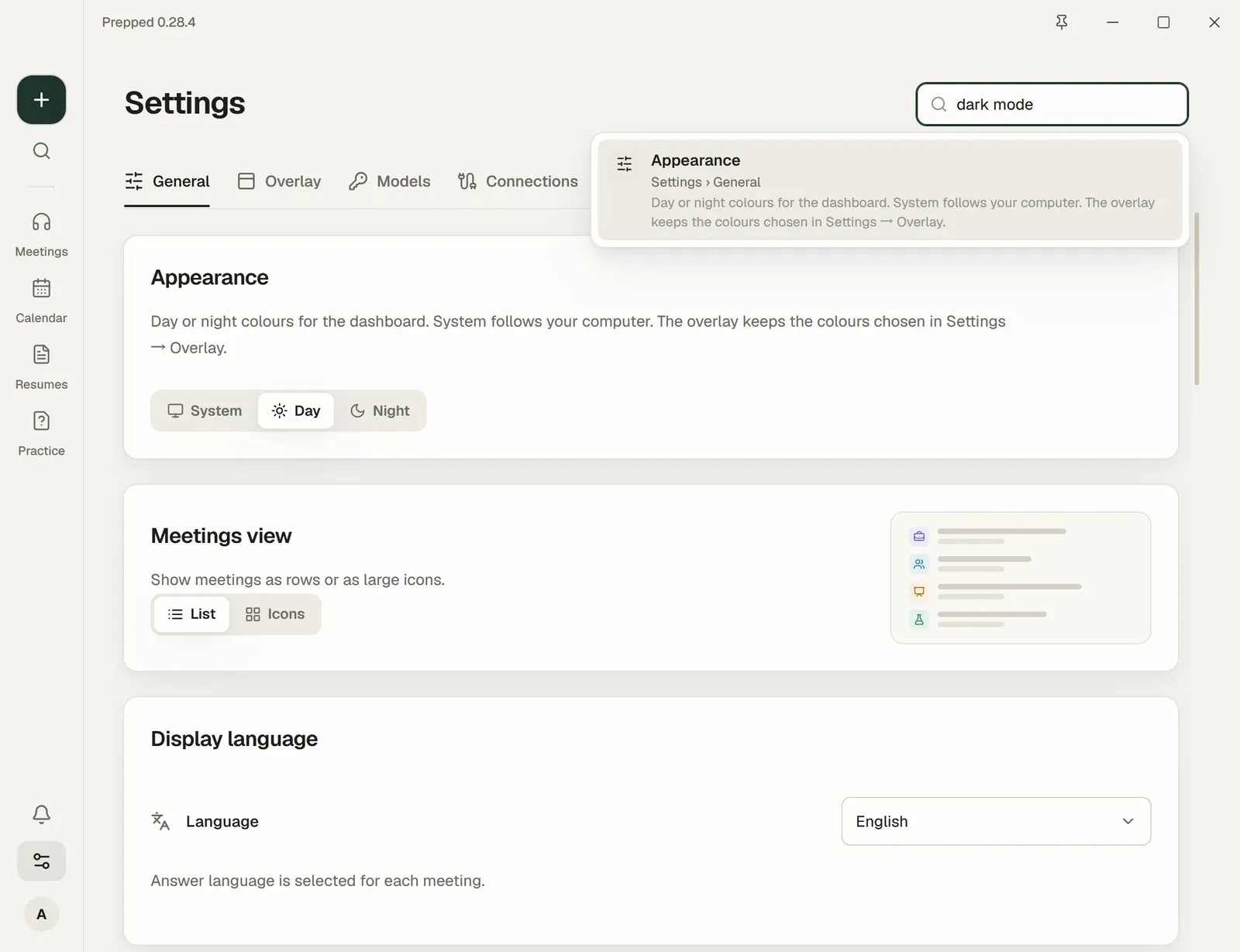
Settings by tab
| Tab | What is there |
|---|---|
| General | Appearance and the interface language, automatic preparation, how Prepped starts and keeps running, and Version and updates. |
| Overlay | Quick actions and notes by meeting type, and how the overlay looks and behaves during a meeting. |
| Models | The models available with their prices. |
| Connections | Calendars, Git hosts such as GitHub, and AI coding tools. |
| Privacy | Screen capture protection, recording consent and the user experience program. |
| Your devices | Phone preferences and a link to the current meeting. Use Connect a phone in that meeting to manage its codes and paired phones. |
| Desktop & audio | The microphone, speech recognition, meeting records and the global keyboard shortcuts. |
The tray icon
With the tray icon on, closing the window keeps Prepped running in the tray. Its menu opens Prepped or a new meeting, controls a live meeting and has Quit Prepped. With the tray icon off, closing the window quits Prepped. On Windows 11 a new tray icon starts under the ^ arrow; drag it onto the taskbar to keep it in view. With Show Prepped on the taskbar off, the window opens from the tray icon only, and the tray icon cannot be turned off. On a Mac the icon is in the menu bar with the same menu, closing the window always keeps Prepped running, and the other switch is Show Prepped in the Dock.