Meetings and their settings
The kinds of meeting Prepped prepares for and what each one asks for, then how a meeting starts when you activate it and how it ends.
Everything in Prepped belongs to a meeting, from its material to its notes. Create a meeting ahead of time, set it up, and activate it when the conversation begins. Each computer runs one meeting at a time.
Kinds of meeting
Choose the kind when you create the meeting. It decides what the setup asks for and how answers and notes are written. The New meeting page shows the three most used kinds first, and the other three are under Other types, each with a line on when it fits; they work as fully once chosen. A meeting’s own page offers all six under Meeting type.
| Kind | Setup asks for |
|---|---|
| Meeting | The agenda, your role, the goals and the decisions to make. |
| Interview | Company and role, the job description, the interview round, the interviewers and the resume to use. |
| Presentation and defense | The title, the audience or committee, the length in minutes and the abstract. Add the slides and your draft script under Slides and script, then write the talk outline on the meeting’s page. |
| Conversation (other types) | Everyday talks that are not a meeting or an interview, with no setup beyond the answer settings. |
| Media interview (other types) | Whether you are interviewed or interviewing, the publication or program, the topic and your key messages. |
| Research (other types) | A discussion about evidence, such as a lab meeting or a paper discussion, answered with careful wording about how strong the evidence is. |
The first part of the form asks for the kind, a name and the resume, and the few fields of the kind people fill most, such as an interview’s company and role. For an interview, paste a job posting’s address under Job posting, and most career pages, such as Greenhouse or Lever, fill in the company, role and job description. The Company field searches a list of companies with their logos. Target role suggests your job targets’ roles and about 200 job titles of every field, found in any of the six languages; choosing one sets the interview’s field, and the line under it says what answers in that field draw on. During an interview, a question about the company’s recent news is answered after a web search.
An interview also asks which job target it is a round of. With a target chosen, the interview takes its company, role and job description, and only Interview round is left to pick. An interview filled from a job posting outside any target starts a job target of its own when you create it, with the interview as its first round.
Under them, Scheduled for holds the meeting’s time and Repeats makes it a meeting that repeats, such as every Friday (see Repeating meetings).
The rest is in two closed sections, each saying on its line what is inside or what of it you filled in. Meeting details holds the group of any kind other than an interview, and the kind’s other fields; and Answer settings holds the settings below.
Answer settings
Each meeting keeps its own settings, on its page and in the new-meeting form. On a meeting’s page, changes save by themselves a moment after the last one and when you leave the page; Save meeting and Activate meeting stay at the bottom of the window, with the time of the last save beside them.
- Answer model. Which AI model writes the answers, with its price. New interviews start with GPT-6.1 Sol. See Models and credits.
- Ultrafast. A switch below the question box of the live meeting’s page, for models that offer it (GPT-6.1 Sol and GPT-6 Astra), giving faster answers at six times the price. The meeting keeps it while its model offers it.
- Meeting language. What people speak; speech recognition listens for this language.
- Answer language. The language answers are written in, which can differ from the meeting’s.
- Live translation. On, what the other side says is translated into the app’s language beside the overlay during this meeting, on whichever computer you run it, Windows or Mac. A new meeting starts as this computer’s own live translation setting is. During the meeting the overlay’s Translate button turns it on or off, and the translation panel’s title bar chooses another language.
- Answers. When Prepped answers by itself, on Every turn, When a question is heard (the default) or Only when I ask. See Live answers.
- Answer type. Plain answer to glance at and say in your own words; Word-for-word script to read aloud, with the pauses and fillers of natural speech, for a second language or moments when you freeze; Cue card, the answer in a few words and then numbered cues to talk from.
- Answer length, format (such as bullet points) and tone.
- Explain trade-offs. When an answer recommends a choice, it says what the choice gives up.
- Go into detail when asked. On by default. When the other side asks you to tell more or explain how something works, the answer uses the detailed length; other questions keep the length you chose.
- Questions about a past experience. The structure of these answers, such as STAR, or Choose for each story.
- Instructions. Anything answers should keep to. Instructions and your own overlay actions can use variables such as
{{company}}or{{meeting}}, filled in when a request is sent. - Session credit limit, in the live meeting’s Conversation settings, is the most the meeting spends, in addition to the account’s daily limit.
Where Prepped hears the other side
- On this computer (the default) is for a video call, or a phone call answered on the computer. The computer’s sound is the other side and the microphone is you.
- Nearby is for a phone on speaker beside the computer, or people in the same room. The microphone hears both sides; press and hold Hold while you answer while you speak, so your words are not taken for the other side’s question.
The phone page explains the three ways to take a phone interview.
The meetings list
Meetings lists every meeting, live and upcoming ones first, each with when it is, such as Scheduled for a time, Started at a time with a moving sound mark while it is live, or Ended with its length. Search by name and show one status (Planned, Live or Ended). Filters, at the end of the same row, narrows the list by type, group, where a meeting came from (set up by hand, from your calendar, or a repeating meeting) and date (today, the next 7 days, or the past 7 or 30 days); its number is how many filters are in use. Sort beside it orders the list by date, name, last change or length instead; the order stays on that device.
Copies and other computers
A live meeting runs on the computer that started it: that computer shows the overlay, listens and answers. Your other computers do not join by themselves; the meeting’s page there shows Listened to on another computer and Open here too. While Prepped is open on them, they search their own project folders for the meeting’s answers, and they can still run a meeting of their own. A meeting can be open on up to three computers at once; see On several computers.
Make a copy, on a meeting’s page, makes a new meeting with everything of this one, its material, preparation, talk and record. A copy can run at the same time as the meeting it came from, on another computer. For a talk, for example, one computer can follow the slides on screen while another searches the full project folder that only it has. A copy keeps the preparation it was made with, so it is not prepared again.
Groups and calendars
A group holds a series of related meetings, such as a weekly meeting or the rounds of one job; Groups at the top of Meetings lists them. Its material serves every meeting in it, and preparation uses what was said in the group’s earlier meetings. Calendars put your next interviews and meetings on Meetings, ready to set up. Both have their own page, Calendars and groups, and a group of interviews is a job target.
Starting and ending
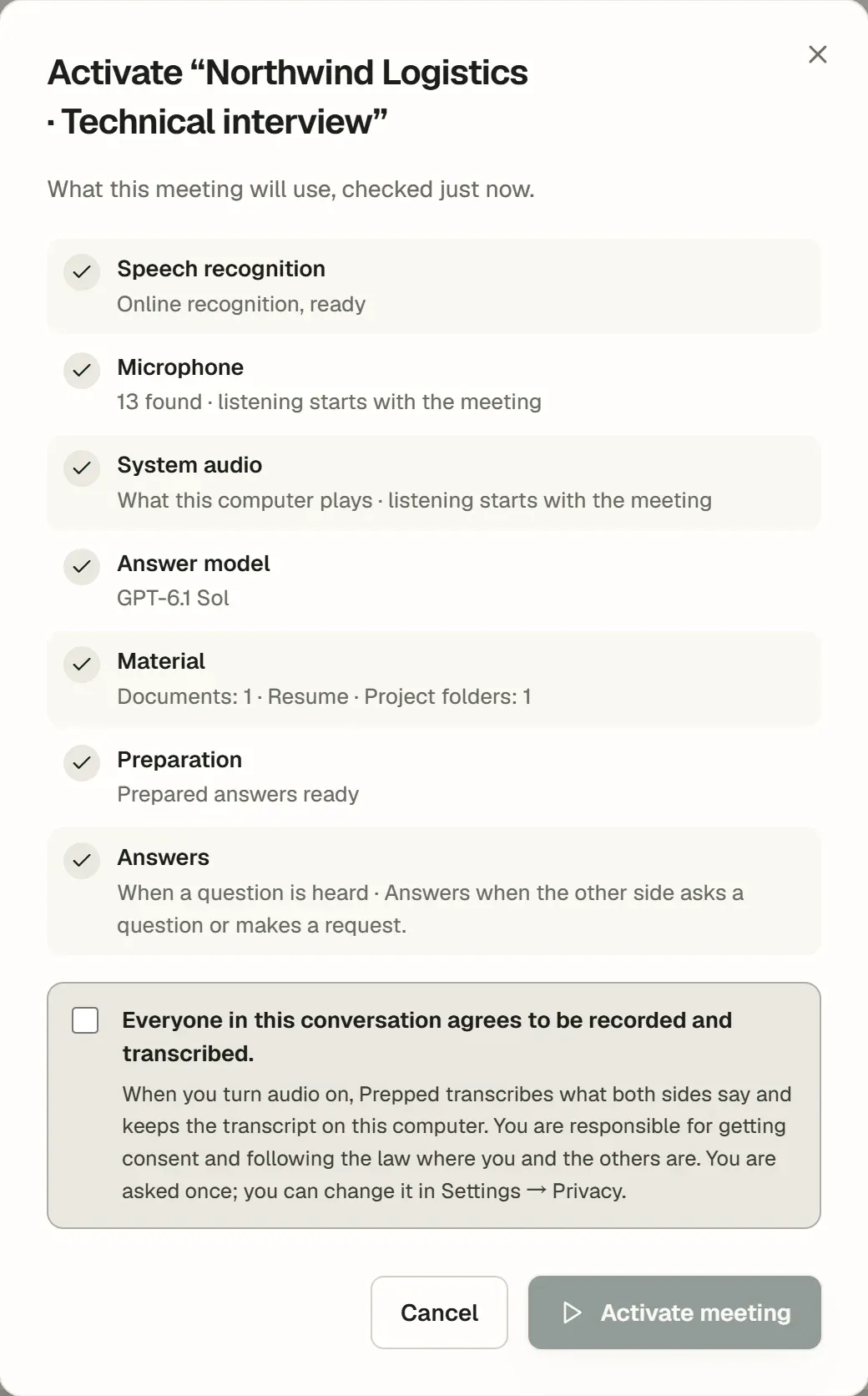
- Activate meeting makes the meeting live and opens the overlay. Just before, Prepped checks what the meeting will use, such as speech recognition and the answer model. These checks are shown in a window the first time, so you can confirm that everyone in the conversation agrees to be recorded, and whenever one finds a problem, such as a model without a key; otherwise the meeting starts at once. The desktop app listens to both sides from that moment; the web app waits for you to turn on System audio and the Microphone.
- End in the overlay, or End meeting on the meeting’s page, stops listening and paid answers. The transcript, answers and notes stay with the meeting.
- Meetings without activity. When nobody has spoken and Prepped has not been used for 5 minutes (1 to 60 minutes, or never, under Settings, then Overlay), the overlay asks “Still there?” and ends the meeting a minute later unless you continue. The other side’s voice counts as activity.
- Meeting detection (on by default). When another app starts using the microphone and no meeting is active, the overlay asks whether to activate a planned meeting or start a new one. A meeting app counts at once, and a call or a browser once it keeps the microphone for a while; games and audio tools never count. Prepped only reads which apps Windows or macOS lists as using the microphone; it records nothing.