Privacy and security
Where Prepped keeps your meetings and what it sends to AI providers to answer you. Everything it keeps can be deleted, on every device at once.
Prepped works on conversations, so it keeps to a few rules. It listens only when you turn listening on, it sends material to an AI provider only for a request you made or allowed, and everything it keeps can be deleted. The privacy page has the same account in short.
Recording consent
Before the first meeting you activate, Prepped asks you to confirm that the people in your conversations agree to be recorded and transcribed. You are responsible for that consent and for the law where you and they are. Settings, then Privacy, shows when you confirmed it and can ask again before the next meeting.
Where your data is
- The desktop app runs its own small service on your computer. Your meetings, documents and project indexes are stored there. Their contents are encrypted in the database, and its key is protected by the data protection of your Windows account (DPAPI), or on a Mac by your login keychain. Meeting records, when turned on, are ordinary files in their own folder, not encrypted; deleting the folder deletes them.
- Your online account keeps the same data, encrypted, as a backup and for your other devices. Project folder indexes stay on the computer that read them, and a meeting set to keep no history is never sent. Deleting something on one device deletes it on the others.
- The web app keeps the same kinds of data in your account on the Prepped service.
Google Drive and Dropbox
Connect an account under Settings → Connections, or choose Add from cloud in a meeting or group. You choose which files and folders Prepped reads. Selected folders include their subfolders; Prepped checks for changes every five minutes and before preparation. Original files stay unchanged.
The Prepped service encrypts connection credentials and saved document text. Selected material syncs to your signed-in devices and is available for preparation and meeting answers. Removing material or disconnecting the account removes its saved files from Prepped on your devices. Existing preparations and answers remain until you replace or delete them. Connection credentials stay on the service. See the privacy page for details.
What goes to AI providers
When you ask for an answer, notes, preparation or practice feedback, the request goes to the provider of the model you chose (OpenAI or DeepSeek). It contains the question, the recent transcript, the parts of your material and project files relevant to it, and a screenshot when you take one. When a meeting with material ends, its transcript and material go once to the same provider’s low-cost model, which corrects misheard words (see The transcript). The provider may keep requests under its own policy.
Audio leaves your computer only while you listen. With online recognition (the default) it streams through the Prepped service to Soniox, with the meeting’s material as context (see Names and terms), and with cloud transcription speech segments go through the Prepped service to OpenAI. With the live translation on, the recognized text also goes through the Prepped service to Google Cloud Translation, which translates it. Raw audio is not saved unless you turn on meeting records, which stay on your computer.
Apart from this, the desktop app looks for a new version only when you choose Check for updates or turn on notifications of new versions.
The user experience program
During the private test, taking part in the user experience program is a condition of the invitation. The desktop app and the web app tell you once, and Settings, then Privacy shows what is sent, with no switch. After the test, the desktop app with an online account asks the first time it opens whether you take part, and Take part in the user experience program under Settings, then Privacy turns it off or on; if you do not take part, nothing of this is sent.
While you take part, each meeting that ends sends the Prepped service a record with the transcript, the questions and the answers, how long each step took, the models used and any errors, and this computer’s system, processor and memory with the Prepped version.
Every five minutes, each device you use also sends its activity record.
- From the desktop app it holds whether the app is running, its version and the computer, the meeting live on it and whether it listens, what you do in it, each request with what was sent and answered (including what goes to the AI provider and its replies), and its logs and errors.
- From the web app and phones it holds the browser and the screen, the pages opened and the page’s errors.
Email addresses, keys, links beyond their site and the account name in file paths are taken out of the activity record. Recordings and screen images are not sent. The desktop app keeps what it has not sent yet in its own folder and deletes it a day after sending it. The records are used only to improve Prepped and for no other commercial purpose. They are not used for advertising and are never sold or shared. They are stored encrypted and kept for 180 days. What cannot be sent at once (no connection) waits on your computer and goes later.
After some meetings, the 1st, 3rd, 10th, 25th and every 25th after, at most once a week, Prepped asks How did we do?. The stars and the comment you send reach the Prepped team; Not now sends nothing and the question waits for a later milestone.
Screen sharing and screenshots
- The overlay never appears in screenshots, recordings or screen sharing made through Windows capture methods, on Windows 10 version 2004 and later. On a Mac, macOS 26 and later leaves it out of screen sharing and recordings made through ScreenCaptureKit, which meeting apps and browsers use; on macOS 14 and 15 that is not guaranteed, so hide Prepped before you share anything sensitive. Folded into its small circle, it stays hidden too. Cameras and other capture methods can still capture it.
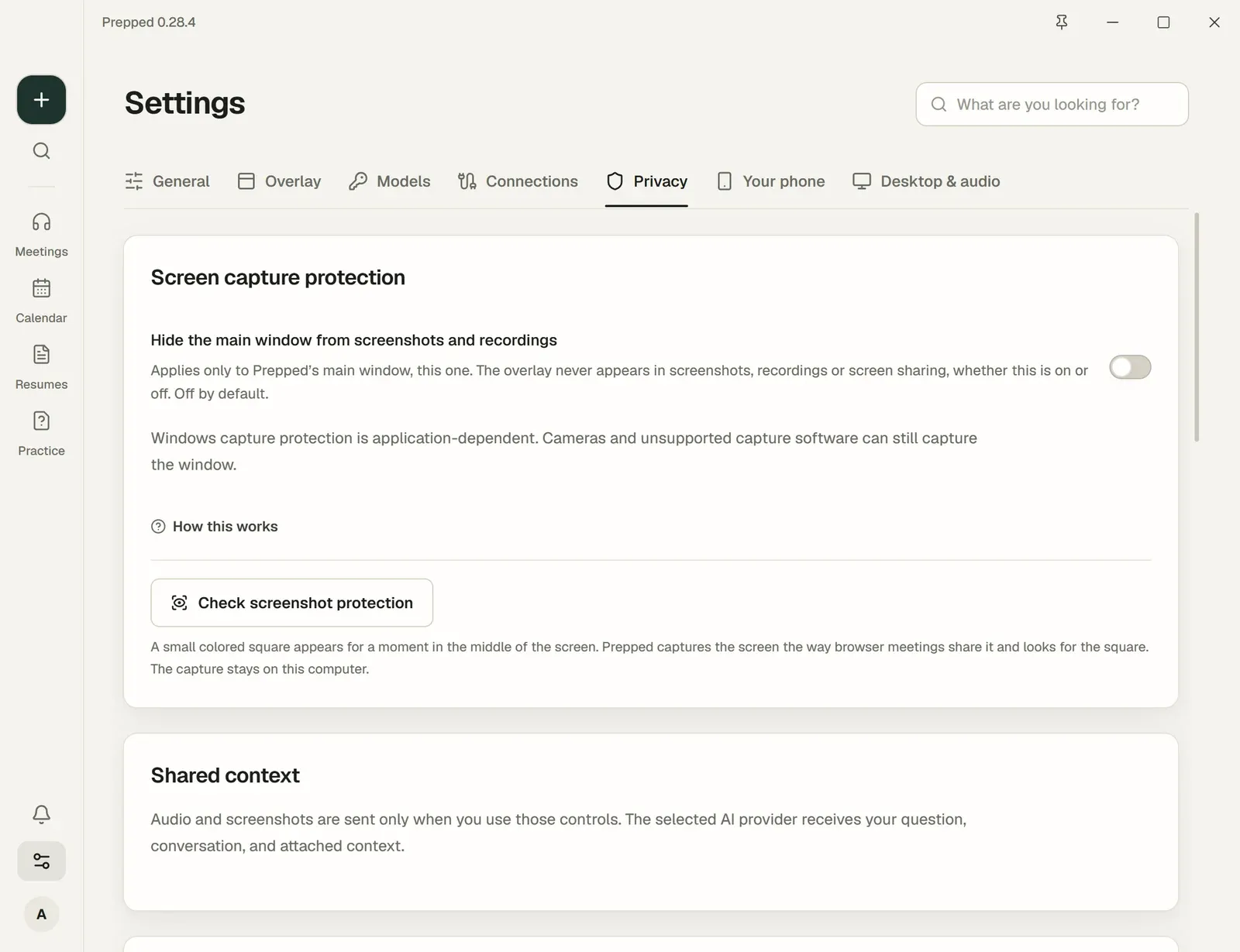
- The main window is hidden the same way when you turn on Hide the main window from screenshots and recordings (Settings, then Privacy; off by default).
- Check screenshot protection shows a small protected square for a moment, captures the screen the way browser meetings share it, and reports whether the square was in the capture. The capture stays on your computer.
- The tray icon can appear when you share your whole screen. Turn off Show Prepped in the system tray (Show Prepped in the menu bar on a Mac) under Settings, then General, if you do not want it seen.
- Browser windows, including the web app, cannot be kept out of screen sharing.
Meeting apps capture the screen in different ways, so share your screen once in yours before you rely on it.
Your account
Change your password under Your account, then Security. Signed-in devices beside it lists every device signed in to your account, where you can sign out the others. A QR code for signing in on your phone works once, for 5 minutes; show it only to your own phone.
Delete your data
| What | How to delete it | What stays |
|---|---|---|
| A meeting | Delete it from its page, and everything in it goes too. | Billing records, for accounting |
| Transcript lines | Edit them on the meeting’s page, or delete the meeting. | |
| Documents | Remove them from their meeting or group. | The original file on your computer |
| Project folders | Remove them from the meeting; the index is deleted. | The folder on your computer |
| Meeting preparations | Run preparation again, or delete the meeting. | |
| Resumes | Delete a resume on its page. | Files you exported |
| Question bank answers | Empty an answer’s parts, or delete your own question. | The library’s questions |
| Practice | Delete a practice session from its page. | |
| Experience program records, activity records and meeting ratings | Deleted after 180 days, and with your account; to have them deleted sooner, write to us from the contact page. | Your meetings |
| Your account | Your account, then Security, then Delete account removes everything above. | |
| Meeting records | Delete their files in the folder shown under Settings, then Desktop & audio; deleting a meeting or your account leaves them. |
A conversation with Keep history after the service closes turned off is cleared when the service closes or starts again.