Preparing a meeting
Add material and the questions you expect. Before the meeting, Prepped learns your projects and finds the facts the meeting likely needs, each with its source.
Answers are only as good as the material behind them. Everything you add to a meeting stays with that meeting; other meetings do not see it unless they are in the same group.
Before the meeting
A planned meeting’s page opens with Before the meeting, which says what is ready and what is left. For an interview that is your resume, the company and job, the job description and its material; for every meeting, its prepared answers, with how long a preparation has run and when one starts by itself. A step that is left has a button, such as Paste a job link or Add material, that takes you to its place on the page.
Material for a meeting
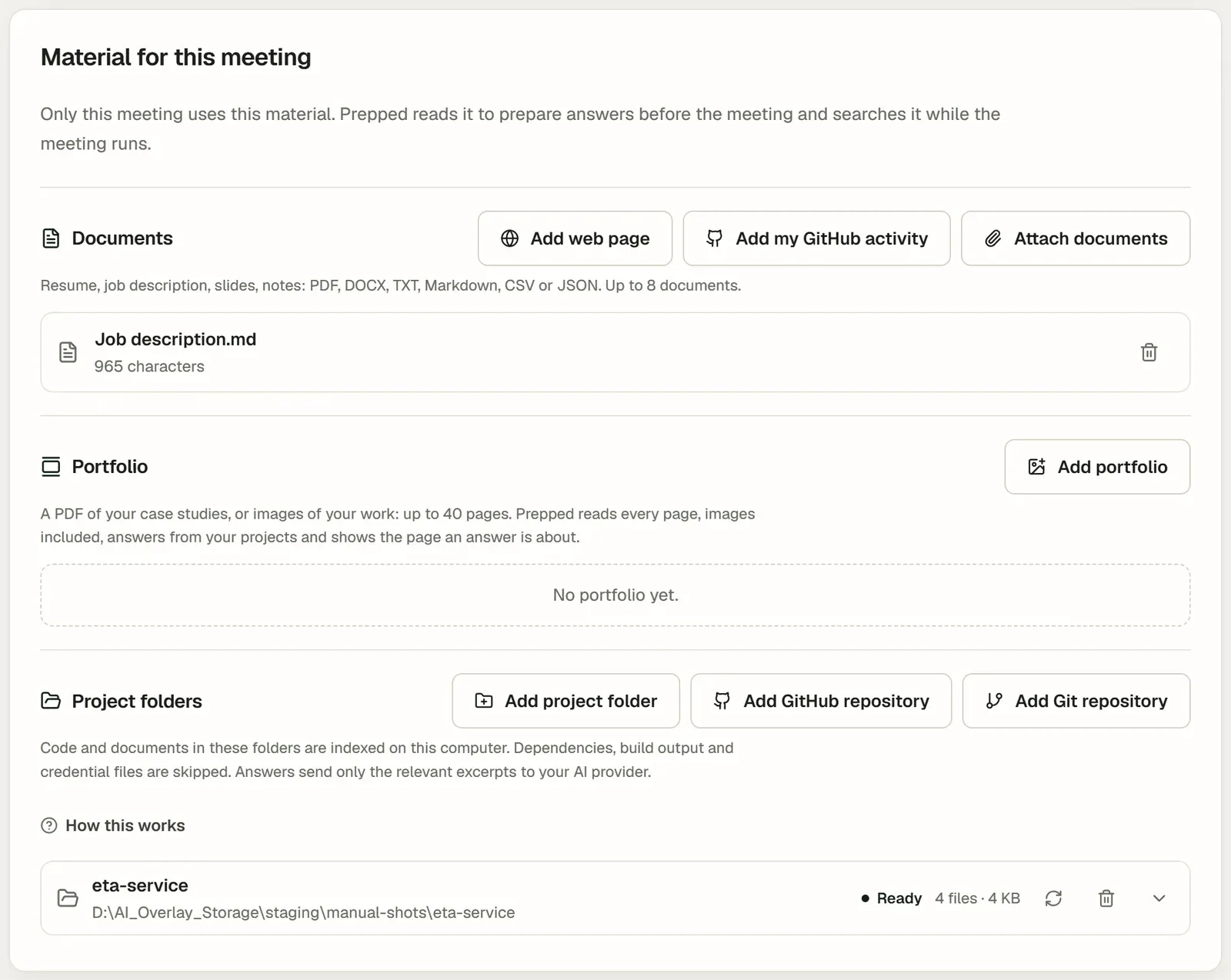
Add material on the meeting’s page, under Material for this meeting.
| Material | How | Where |
|---|---|---|
| Documents | Attach PDF, Word (DOCX), text or Markdown files, such as the job description or your slides. | Desktop and web |
| Web pages | Add web page with its address. PDFs and shared Google documents work by their links too. | Desktop and web |
| A portfolio | Add it as material. Prepped reads every page, images included, answers from your case studies and shows the page an answer is about. | Desktop and web |
| Project folders | Choose a folder on your computer. Prepped lists every file in it and builds a searchable index of its code and documents on the computer, without a model request. | Desktop |
| Git repositories | Add GitHub repository with owner/name or its address, and a branch or tag if you like. Public repositories need no sign-in; sign in to GitHub on the computer for private ones. With Git installed, repositories from other services such as GitLab, or from a company server, work too. |
Desktop |
| Your recent work | Your recent GitHub activity, when you are signed in to GitHub. | Desktop |
The resume comes from the meeting’s Resume field, which every kind of meeting has; a new meeting starts with your most recently changed resume. Projects, repositories and portfolios says what Prepped reads from them, what it leaves out and how answers use them.
Slides and draft script
A meeting of the type Presentation and defense has Slides and script above its talk outline.
- Add slides takes a PowerPoint file (.pptx) or a PDF of the slides. Prepped keeps each slide’s text and speaker notes and adds them to the meeting’s material; the pictures are not kept. Replace slides puts a new version in place of the old one.
- Your draft script is what you plan to say, typed, pasted or from a file (TXT, Markdown, DOCX or PDF). Prepped keeps its content, order and examples, and fits the wording to the slides and the time.
- With slides, Draft from the material gives each section of the outline its slides in order, shown beside its minutes (“Slides 3–5”), and what Prepped writes for a section says which slide each point goes with.
- Follow my slides on screen during the talk is on by default: in the desktop app, Prepped looks at your screen when the slide changes. How it helps during the talk is in Live answers.
Talk outline and what to say
A meeting of the type Presentation and defense has a Talk outline below its material, with each section’s title, its points and roughly how many minutes it takes. The minutes are only a rough guide. Prepped writes about that much for each section, and keeps the talk only to the length set in the meeting details. Sections without minutes share what the talk’s length leaves over.
- Start from an outline you have with Paste an outline. It takes headings, numbered lines or a list, with the points indented or after a dash and the minutes after a title, such as “Method (5 min)”. Draft from the material writes one from the slides, paper or abstract attached to the meeting with one paid request to the meeting’s model. You can also fill it in section by section.
- The bar above the sections compares the outline’s total with the talk’s length, and each section shows its rough start time.
- Points edit like a list. Enter starts the next point, Backspace at the start of an empty point removes it, and pasted lines become points. − and + change a section’s time by half a minute. The outline is saved as you change it.
- Each section has a presenter, empty when you give it yourself. With another presenter’s name, such as a colleague who gives the first slides, Prepped writes nothing for you to say in that section and follows it by its slides.
When the meeting is activated, Prepped writes what to say in each section with the meeting’s model, starting with the first section. Each section gets the points to make (those you can leave out when you run late are marked), the sentences that lead into the next section and back after a question, and likely questions with their answers. Statements your material does not support are in [square brackets]. The overlay shows it one section at a time, and a section’s points until its text is ready; a section you change during the meeting is written again. How the talk is followed is in Live answers.
Questions you expect
Add them under Questions you expect on the meeting’s page (up to 40), or pick them in the question bank and choose Prepare for this meeting. Preparation finds the facts each one needs, and when you have written your own answer in the question bank, the answers in the meeting build on yours.
Preparation
Under Preparation, choose the model whose provider prepares, and select Start preparation (Prepare again once the meeting has one). The page says first what it is expected to cost, usually a few cents. Preparation keeps running when you leave the page. With the provider’s low-cost model it:
- Learns where things are in each project. For each project it writes a short guide to where each kind of content is and which files hold the latest results, from the project’s layout, the headings of its documents, the files changed last and its coding tools’ memory. A project whose guide was written before from the same inputs uses that guide again.
- Finds the facts the meeting is likely to need. From the meeting’s details, documents, resume, projects and the earlier meetings of its group, it works out the topics the other side is likely to raise. For each topic it searches every project file, by words and for the exact names and numbers the topic involves, the text of PDF, Word and PowerPoint files included, and writes down the key facts, each with the file and lines, the page or the document it comes from. A number its sources do not contain is put in [square brackets] for you to check.
- Writes lines to say while you think, such as “Let me think about that for a second.”
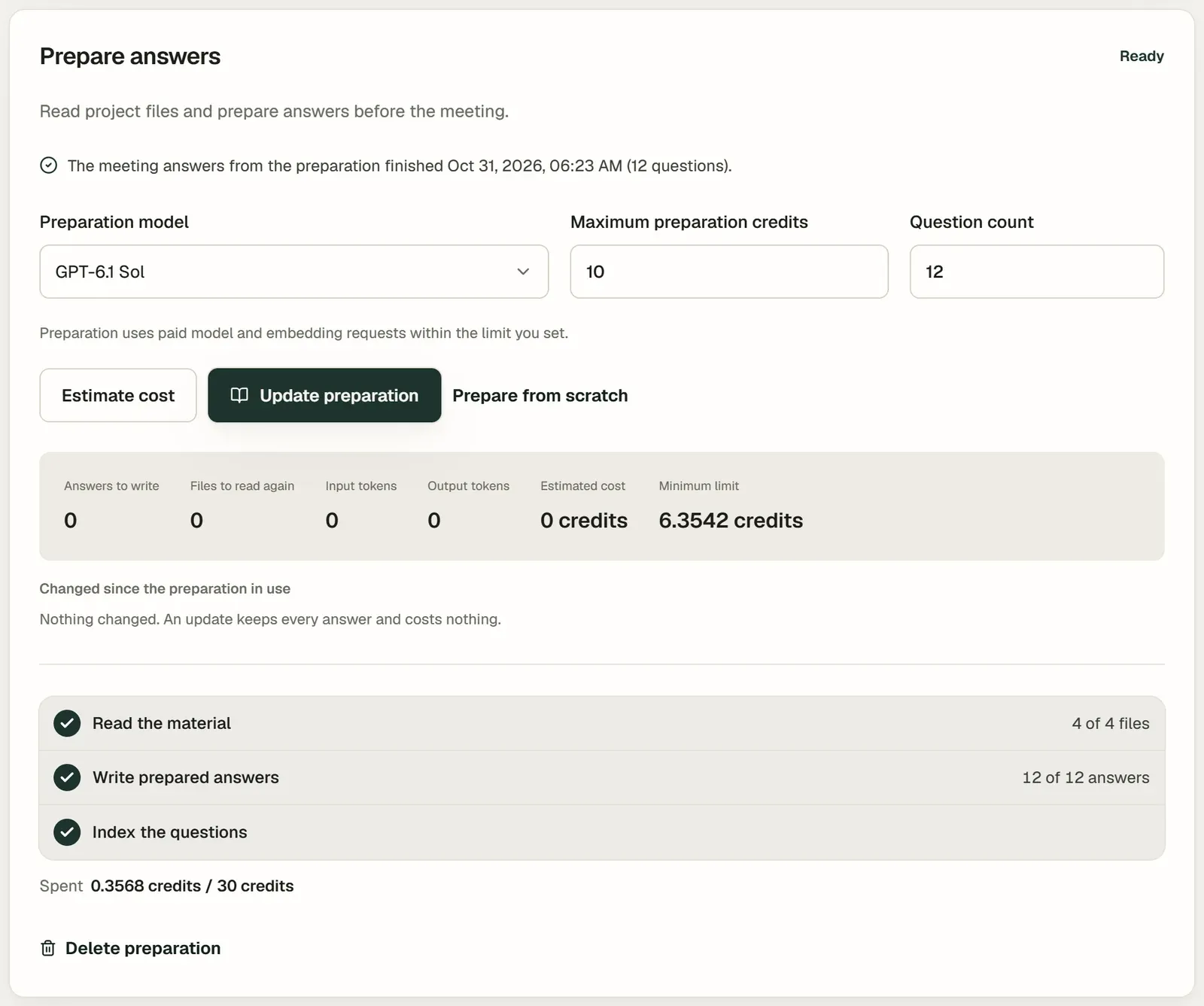
- A bar above the steps shows how much is done, and a line under them says what it is doing now and how long it has been running. Once it is finished, each project shows how many of its files the facts come from; every one of them can be searched in the meeting.
- Pause preparation stops it and keeps what is finished; Resume preparation continues from there.
- You can activate the meeting while it prepares. Preparation goes on during the meeting, and answers use what it has finished; ending the meeting stops it. Another meeting going live, or a question asked in another meeting, pauses it, so that answer comes first.
- You can change the meeting while it prepares, for example attach a document or choose another resume. The preparation goes on with what it had, and as soon as it finishes, the meeting is prepared again with the change.
- Preparation also reads your memory under Account, Profile, Your memory: the facts about your experience beyond your resume. The notes use them as things you said yourself. A fact added later is read by the meeting’s next preparation; a finished preparation stays as it is.
During the meeting every answer is written for the question asked: it starts from the facts preparation found, with their sources, and searches all of the project files for the rest (Live answers). The cost of preparing depends on the number of projects and topics, not on how many files the projects hold.
Preparing again
When the material changes after a preparation finished, preparing again makes a new one, and the guides of projects whose inputs did not change are kept. Until it is ready, the meeting uses the preparation it has, and the page says which one that is. A new meeting of a group uses the preparation of the group’s previous meeting until its own is ready. A copy of a meeting keeps the preparation of the meeting it was copied from, so it is not prepared again.
Prepared on another computer
The preparation is kept with your account, so each of your computers has it. Project folders, though, are read on the computer they are on. When a meeting was prepared on another computer and this one has different projects, such as a folder that is only there or the same repository at another commit, the checks before the meeting starts and the meeting’s material say Prepared on that computer and list each difference. During the meeting, if that computer has Prepped open and Let other computers search this computer’s folders turned on in Settings under Your devices, answers on this computer also search the folders there. While that computer is not open, answers search only this computer’s projects, so they can differ from answers on that computer.
Automatic preparation
For a scheduled meeting with documents, projects or a resume, automatic preparation can start three hours before the meeting by default. Each occurrence of a recurring meeting uses its own start time. Change the lead time under Settings → General → Automatic preparation. You can prepare manually at any time. A meeting without a start time is eligible once its material has been stable for about two minutes.
During the preparation window, Prepped waits for about two minutes after the last change to the material. Changes can trigger another run at most once every ten minutes. In the final two hours, only the two-minute wait applies. The daily spending limit must cover the estimated cost, with at most 10 automatic runs per meeting and 30 in total per day. In the final three hours, repositories and folders are checked for changes every 30 minutes. While a meeting is live, other meetings’ preparations pause. You can resume a failed run from the meeting page.
Under Meetings, on the web app’s home page and on the meeting’s page, a meeting being prepared shows Preparing and how long it has run in its own line. When preparation needs your choice (a key for the meeting’s model is missing, today’s spending limit has too little left, or today’s runs are used up) or stopped with an error, the meeting’s button says Needs your decision. It opens why, with the choices: add a key, change the daily limit, prepare on the meeting’s page, or resume.
Practice before the meeting
An interview meeting has Mock interview beside Activate meeting: an AI interviewer holds one round of the interview with you aloud, as a rehearsal of the meeting, from its job, resume, material and preparation, and the review of an interview follows when it ends. The meeting’s page lists its mock interviews. See Mock interviews.
Other meetings have Practice for this meeting under Questions you expect: a practice of the questions you expect, then the others preparation expects.
Rehearse the whole meeting
A presentation or a defense can be held once beforehand, as it will go. Select Rehearse beside Activate meeting at the bottom of the meeting’s page: Prepped listens, answers from the meeting’s material and preparation, follows your slides on screen and shows the live translation when it is on, as in the meeting itself. The page and the overlay mark it as a rehearsal. When you end it, the meeting is still planned, and nothing said in the rehearsal goes into the meeting, its preparation, your answers or your memory. Each rehearsal is listed under Rehearsals on the meeting’s page with its transcript, answers and how long each section of the talk took. A rehearsal costs what the same stretch of the meeting would, and stays on the computer it was held on.